
How Ask Ginger Works in Play This Life
The parts of Ask Ginger in Play This Life: what Ginger, your AI assistant, saves from a message, the task card, memory, voice, history and export.
Ready plan: Daily Plan for a Remote Worker Who Wants to Get Organized
Ask Ginger is the chat in Play This Life. You write a message in your own words. Ginger, your AI assistant, saves it as tasks, projects, habits, routines, workouts and chores. Ginger also records the work that you report and reads your plan and your history. We built it so that one message can set up or change a plan.
What you can ask
Ginger works on the same tasks that the other features show.
| Request | What Ginger does |
|---|---|
| Create | Tasks, projects with steps, habits, routines with steps, workouts with exercises and sets, chores and lists. One message can create many tasks. |
| Change | Names, dates, times, lengths, repeat rules and parents. Ginger can also skip or move one occurrence of a repeat. |
| Record | Completions and results such as weight, repetitions, time and distance. Ginger can start, pause and finish a session, and undo a completion. |
| Read | The plan for today, your tasks and calendar, the work that you met, did late or missed, and your wins and XP. |
| Remind | A reminder a set number of minutes before a scheduled task. The reminder is a notification in the installed app. |
| Remove | Archive, delete and restore tasks. Their records stay. |
These are examples of messages:
- “Add a project to repaint the bedroom. The steps are: buy paint, tape the edges, paint two coats.”
- “Make a morning routine on weekdays at 7: stretch, shower, breakfast.”
- “I ran 5 km this morning. Mark my run done.”
- “Move the workout of this Thursday to Friday.”
- “What did I miss last week?”
Ginger also answers messages that save nothing, for example a question about a draft or a decision.
What Ginger reads before it answers
With the first message of a chat, the app sends Ginger your current plan. The plan has the entries for today and each open task and repeat, to a limit of 300.
Ginger has written instructions for your messages. They say:
- Find the parts of a request that are already in the account. Change those parts and create only the new parts.
- Read a message with several parts as one request.
- Record only the work that you report.
- Ask one short question when a message has two meanings that save different results.
- Do not ask for confirmation of a clear request.
- Calculate new dates with the schedule tool of the app.
The purpose of these instructions is one copy of each task and a record that has only your facts.
How Ginger shows what it saved
While Ginger works, the chat shows Thinking and a count of seconds. A line of small text names each step, for example Read task context · Added tasks.
After a save, a card appears below the reply. The card has a title, for example 3 tasks added, 1 task updated or Progress recorded for 1 task. Below the title are the names of the first three tasks.
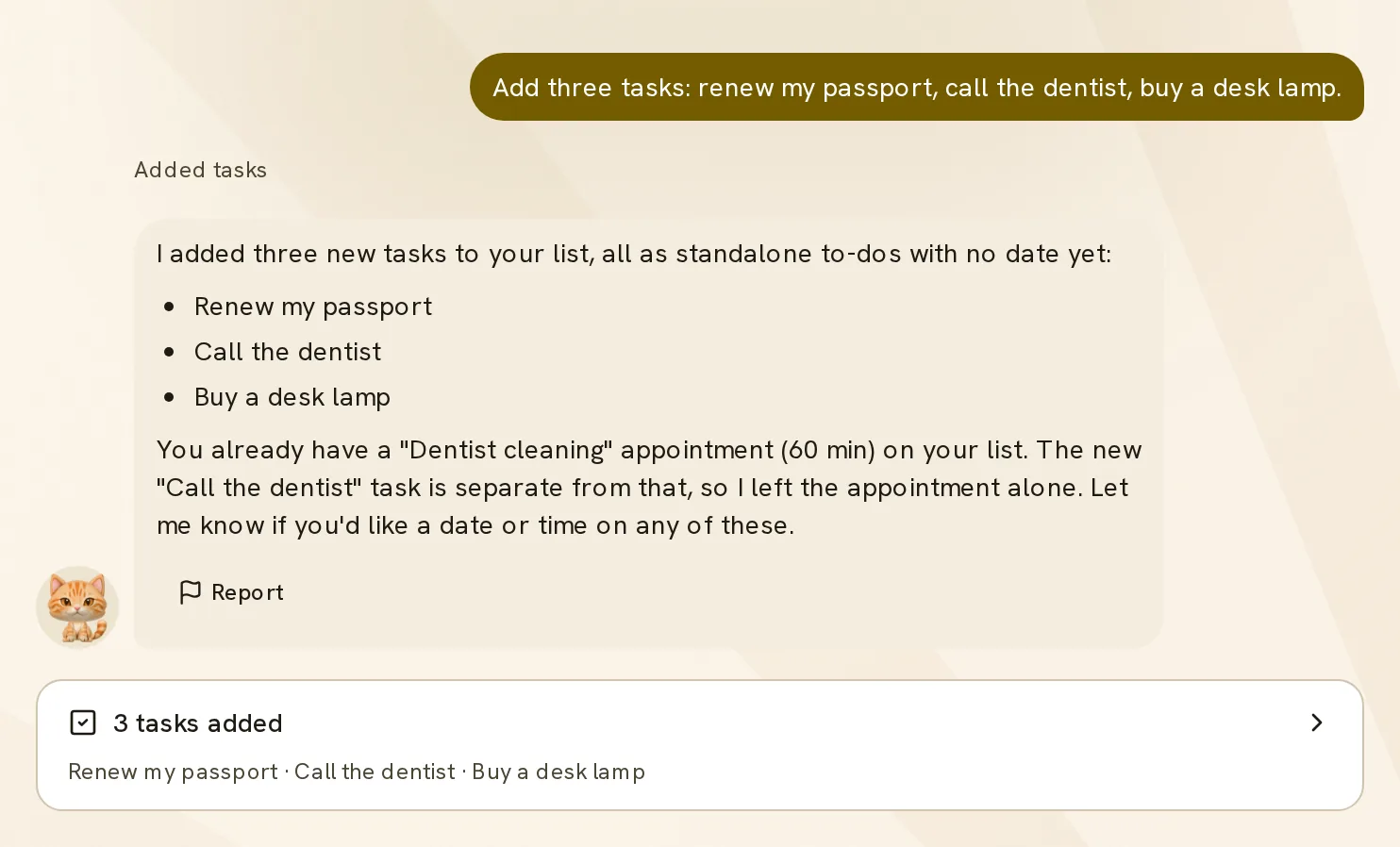
Select the card to open the tasks as a tree. Each row has a label for the action, for example Added, Updated or Archived. A parent that shows only the position of a task has the label Context. Each row has the link Open in Tasks.
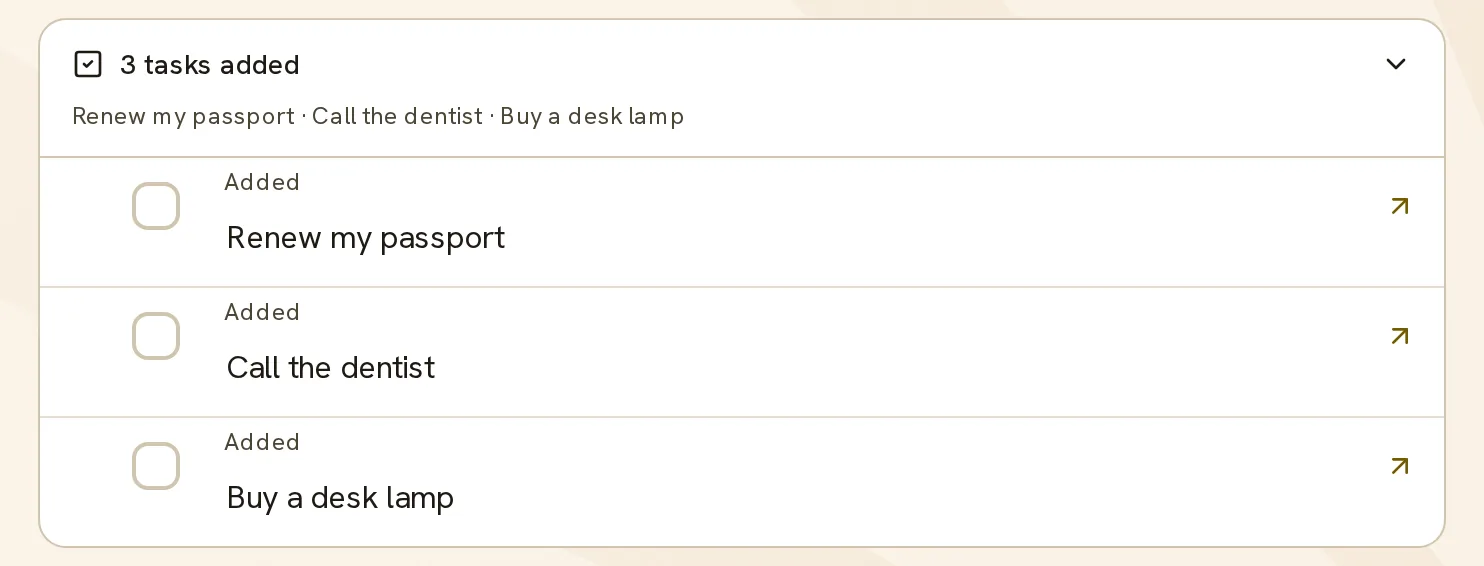
In the Ask Ginger view, you can complete, rename or add tasks in the open card.
The app makes the card from the result of the save, not from the text of the reply. Thus a card appears only after the save is complete.
The saved tasks then appear in their features: Work, Habits, Routines, Workouts, Chores and the Planner.
Questions and approvals
When Ginger needs a fact, a question card appears in the chat. Select an option, or write below Or write your own answer. For one question with one choice, the option that you select is the answer. For other cards, select Send answer.
Ginger can ask for approval before a change. There are two approval cards:
- Okay to go ahead? shows the number of tasks to archive and their names. Select Approve once or Decline.
- Proposed change shows a change to one occurrence of a repeat, for example the targets of one workout day. Select Apply or Decline.
If you decline, Ginger saves nothing from that proposal. If the card is not in view, a button above the message box shows Answer question or Review approval.
What Ginger remembers
Ginger keeps one note about you. The note has a maximum of 2,000 characters under two headings: “How to talk to me” and “About me”.
After a chat is quiet for 3 minutes, the app can write the note again from your own messages in recent chats. The instructions for the note say:
- Keep only what you state. Examples are your name, your reply style, lasting facts about your life and standing preferences for tasks.
- Do not save a guess that Ginger made or the mood of one day.
- Save health, sexuality, religion or politics only when you ask.
- Remove a line that you later contradict.
Ginger receives the note with the first message of each new chat. A preference such as “Keep your replies short” is the type of line that the note keeps.
To read the note, open Account and find What Ginger knows about you. Select Clear to delete the note.
A new chat does not contain your earlier chats. The note and your saved tasks connect one chat to the next.
The message box, voice and chat controls
An empty chat shows What do you want to work on?. In an account with no tasks and no completed work, the Ask Ginger view shows I’m Ginger. What’s on your mind? and three starters: Sort my to-dos, Break down a goal and Plan my workouts.
Press Enter to send the message. Press Shift and Enter to start a new line. While Ginger works, the send button becomes a stop button that cancels the message.
Voice. Select the microphone button and speak. A recording has a limit of 90 seconds. Select the stop button to put the text in the message box, where you can edit it. Select the send button during a recording to send the text immediately.
| Control | Function |
|---|---|
| History | Opens Chat history. The chats are in groups by day: Today, Yesterday, then dates. The title of a chat is the start of its first message. Load older shows earlier chats. |
| New chat | Starts an empty chat. The earlier chat stays in the history. |
| Export | Copy chat copies the chat as text. Download Markdown saves it as a file. The export includes messages, answers and task summaries. |
| Report | Is below each reply. It sends that reply and your reason to Play This Life. |
You can change to another chat after the current reply or question is complete.
The Ginger bar on Home
Home has a Ginger bar at the bottom of the view. Its message box shows Tell Ginger what you did…. Write one sentence to record work, move a task or add a task.
The bar shows a maximum of two shortcuts above the message box:
- A shortcut that names a late chore, for example Move laundry to tomorrow, sends that request.
- What’s left? asks for the open work of today. When no work is open, Log something starts a message with “I did”.
- Add a chore starts a message with “Add”. It appears when Home has fewer than three items.
When you send a message, the full chat opens in the same place. It is a sheet on a phone and a panel above the bar on a wider screen. Chat opens it without a message. The chat also opens when Ginger asks a question.
The bar and the Ask Ginger view show the same chat. You record work in the view that shows your day.
Ask Ginger in other features
The sidebar item Ask Ginger opens the full chat view. Other features open the same chat in a dialog above the view.
| Feature | Control |
|---|---|
| Planner, Chores, task tree | Ask Ginger in the header. In Chores, Add chore also opens the chat. |
| Inbox | Organize with Ginger sends the message “Suggest how to organize my Inbox.” |
| Habits | Ask Ginger in the header. An empty Habits view shows the chat with the question What habit would you like to build? |
| Routines, Workouts | Add routine and Add workout open the chat. An open routine has the button Ginger. An open workout and the stats have Ask Ginger. |
When you open the chat from one routine or workout, its name appears above the message box. Ginger receives that item with your message, so you do not need to name it.
A chat that starts in Routines or Workouts also tells Ginger the view. Ginger uses the view when a new plan does not state its type.
To use Ask Ginger, create your account.