
How Workouts Work in Play This Life
The parts of Workouts in Play This Life: exercises, sets, targets, set logging, the schedule, stats, and how Ginger, your AI assistant, builds a workout.
Ready plan: Daily Plan for a Freelancer Who Wants to Get in Shape
The Workouts feature in Play This Life holds your training sessions. A workout is a repeating session with exercises, and each exercise has sets with planned targets. Any training fits: bodyweight work, weights, running or stretching. We built it to plan a session one time, record each set during training, and see the record over months. Ginger, your AI assistant, builds the workout from your message.
The Workouts view
The sidebar has Workouts under Views. The view shows one card for each workout, with the workout name, the number of exercises and the first three exercises. Select the card to open the workout. Select Stats on the card to open its stats.
When one parent holds two or more workouts, the view shows one card for the group. A list named Gym with the workouts Push, Pull and Legs is an example.
Exercises, sets and targets
An open workout shows one block for each exercise. The block shows the exercise name, the number of sets and the targets. An example is “3 sets · 8 repetitions · 40 kg”.
A set is one turn at the exercise. Each set has its own targets, because the load and the repetitions can change from one set to the next. A target is one value or a range, for example 8 to 10 repetitions. A set can also have no target.
Measurements
A target and a result are values of a measurement. There are four standard measurements.
| Measurement | Unit | Example |
|---|---|---|
| Load | kg or lb | The weight in a bench press |
| Repetitions | Count | The push-ups in one set |
| Duration | Seconds | A plank, a stretch or a timed run |
| Distance | Meters | A run or a swim |
An exercise can have more than one measurement. A bench press has repetitions and load, and a run has distance and duration.
Ginger converts minutes to seconds and kilometers to meters when it saves a value.
To change between kg and lb, select the unit next to the measurement name in the exercise block. This changes the display only.
Log a session set by set
- Open the workout and select Start.
- Read the values in the first set row. A new set shows its targets as suggested values.
- Change each value to your result.
- Select the check mark at the end of the row to log the set.
- Do the same for each set. The row with an outline is the next set.
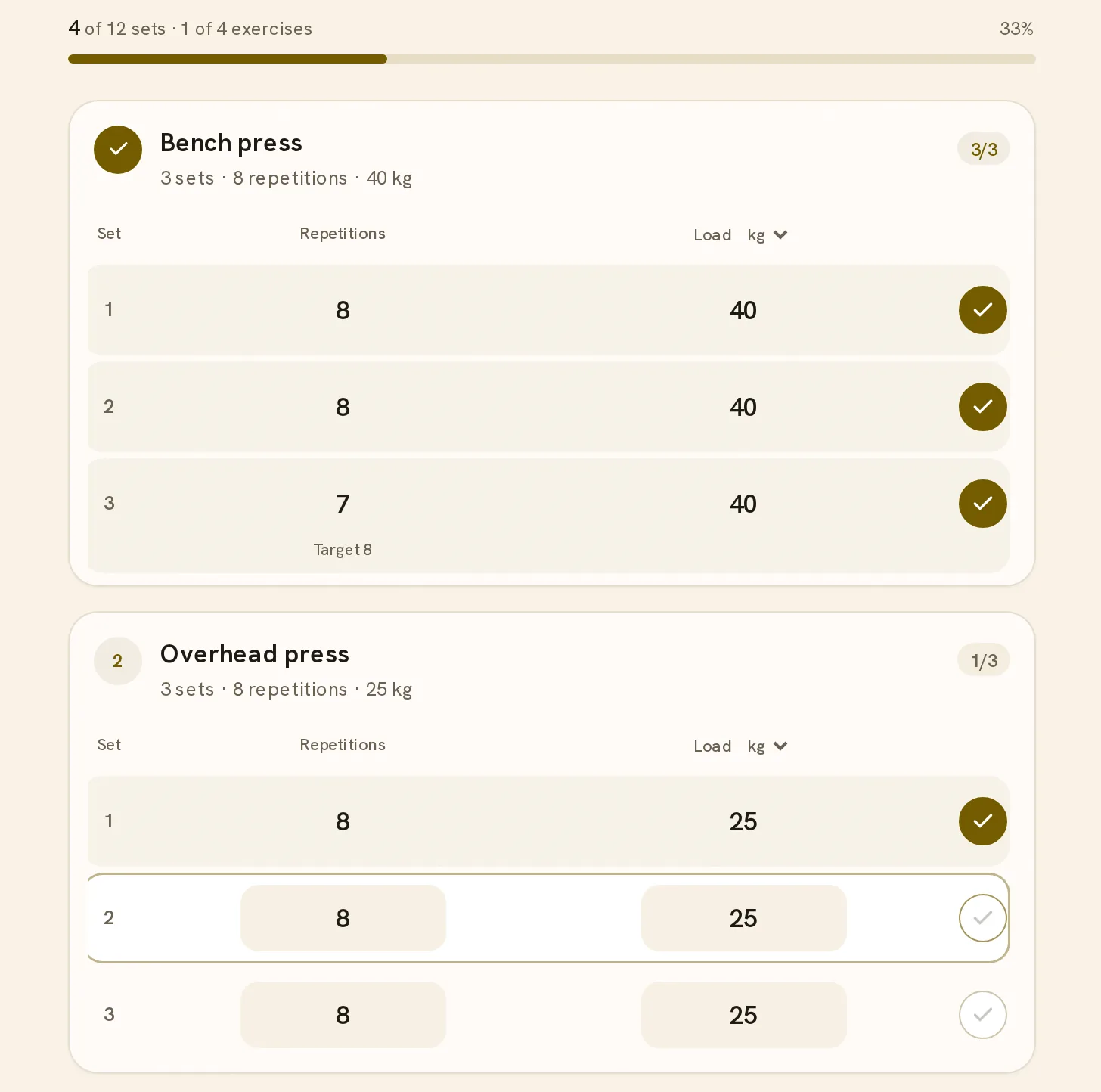
A suggested value becomes a result only when you log the set. When a result is outside its target, the row shows the target below the result. The plan and the record stay as two values, so the record shows what you did.
To reverse a logged set, select its check mark again.
The set number opens a menu. Skip set marks a set that you do not do. For a measurement in seconds, the menu starts a timer, and Use time puts the timed seconds in the set.
What the next session shows
Each session starts from the plan, not from the results of the last session.
To see the last session during training, open the Workout options menu and select Show previous results. Each exercise then shows a line that starts with Last and gives the result of each set. A suggested value then uses the last result when that result is inside the target range.
When Ginger links the same exercise in two workouts, Show last across linked tasks shows the last result from either workout.
History in the same menu lists the earlier sessions by month, each with its date, start time and status. Select a row to open that session.
A change to the plan does not change earlier sessions. Each session keeps the targets and the results that it had.
Finish and undo
Finish completes the workout and closes the session. You can finish at any time. A summary then shows Workout complete, the date, the finish time and each set. A set that you did not log shows Not logged.
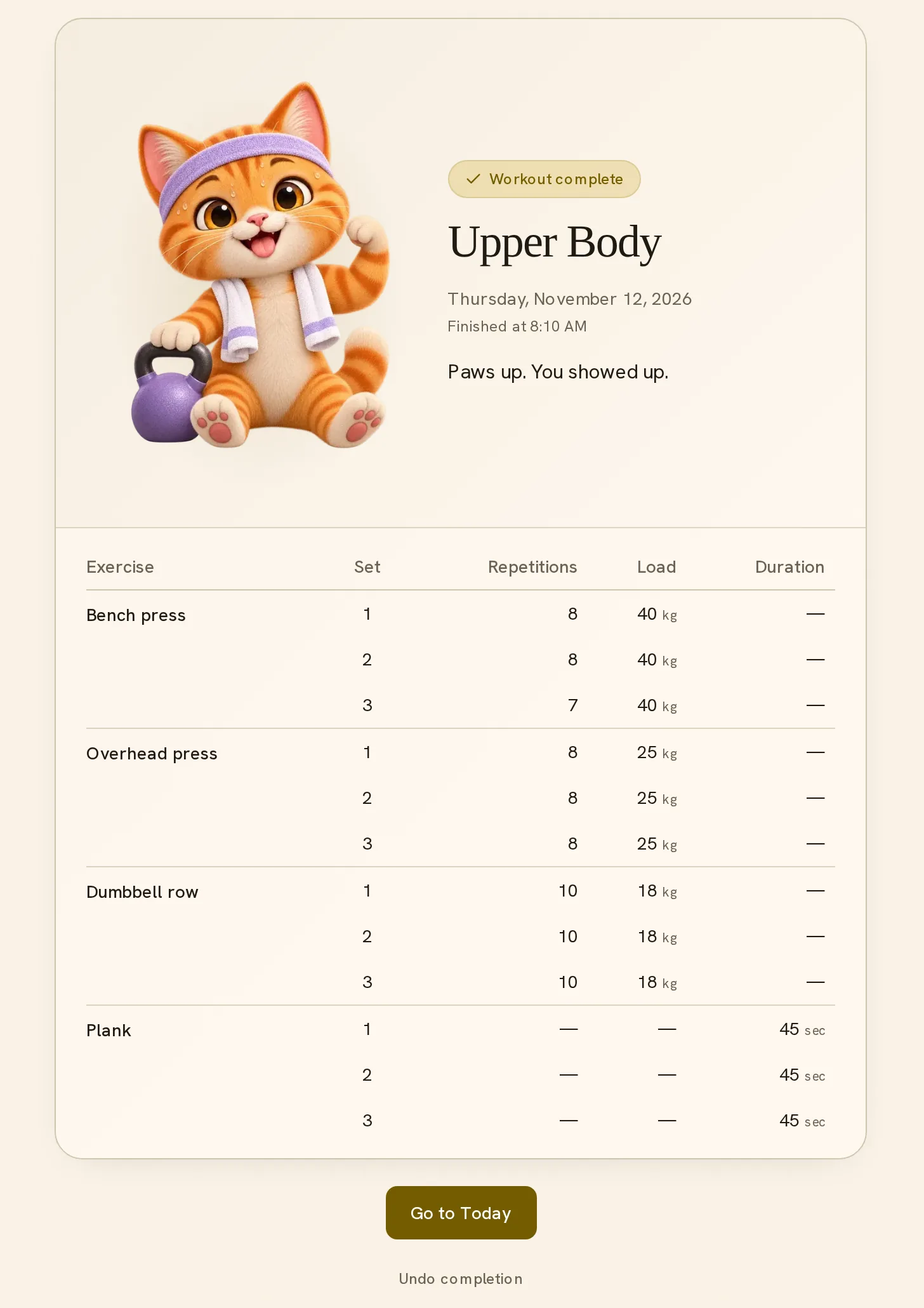
To reverse a completion, select Undo completion. It is below the summary, in Workout options and in History. The session stays in the history with the status Undone.
After you finish the session of the day, the workout opens on its summary. New workout in Workout options prepares an extra session.
The schedule
The workout holds the schedule, and its exercises follow it. A schedule can have set days, a time and a length. An example is Monday and Thursday at 6 PM for 1 hour. The line below the workout name shows the sessions of the next seven days.
A workout can also repeat a number of times each week on flexible days. It can repeat a number of days after the last completion, or have no set day.
Different training on different days is a set of separate workouts. For Push on Monday and Thursday and Pull on Tuesday and Friday, Ginger makes two workouts.
A workout with a time gets a reminder before the start. The reminder is a notification in the installed app when notifications are on.
What a missed day does
A workout on set days has a setting for missed sessions. It is the same setting that a chore has, and the Chores guide shows each option with an example.
- Skip: the missed session closes.
- Carry one: the most recent missed session stays open until you do it.
- Backlog: missed sessions stay open, oldest first.
Ginger selects the setting when it saves the workout. To select another setting, tell Ginger.
A missed training day does not always need a second session. For this reason, missed sessions add up only when you ask.
In stats, a scheduled session of an earlier day that you did not complete counts as missed. A session that you do late counts on its scheduled day.
Workout stats
Stats opens from three places: a workout card, the header of an open workout, and the sidebar. The sidebar entry lists each workout and each routine. Stats for a group cover all workouts in the group.
A control selects the period: Week, Month or Year. Month is the default.
| Period | Bars in the chart |
|---|---|
| Week | The last seven days, one bar for each day. |
| Month | The weeks from four weeks ago to today, one bar for each week. A week starts on Monday. |
| Year | The last twelve months, one bar for each month. |
- Exercises: the planned exercises that you did in the period, for example “34 of 40 done”.
- The chart: each bar divides the planned exercises into Done, Cut short and Missed. Done has all sets logged. Cut short has some sets logged. Missed has no sets logged, or the session was missed.
- Workouts: one tile for each workout, with the sessions done out of the sessions planned and the number missed.
- The exercise table: Best is the top value in the period and its change from the start of the period. Done is the number of sessions in which you did the exercise.
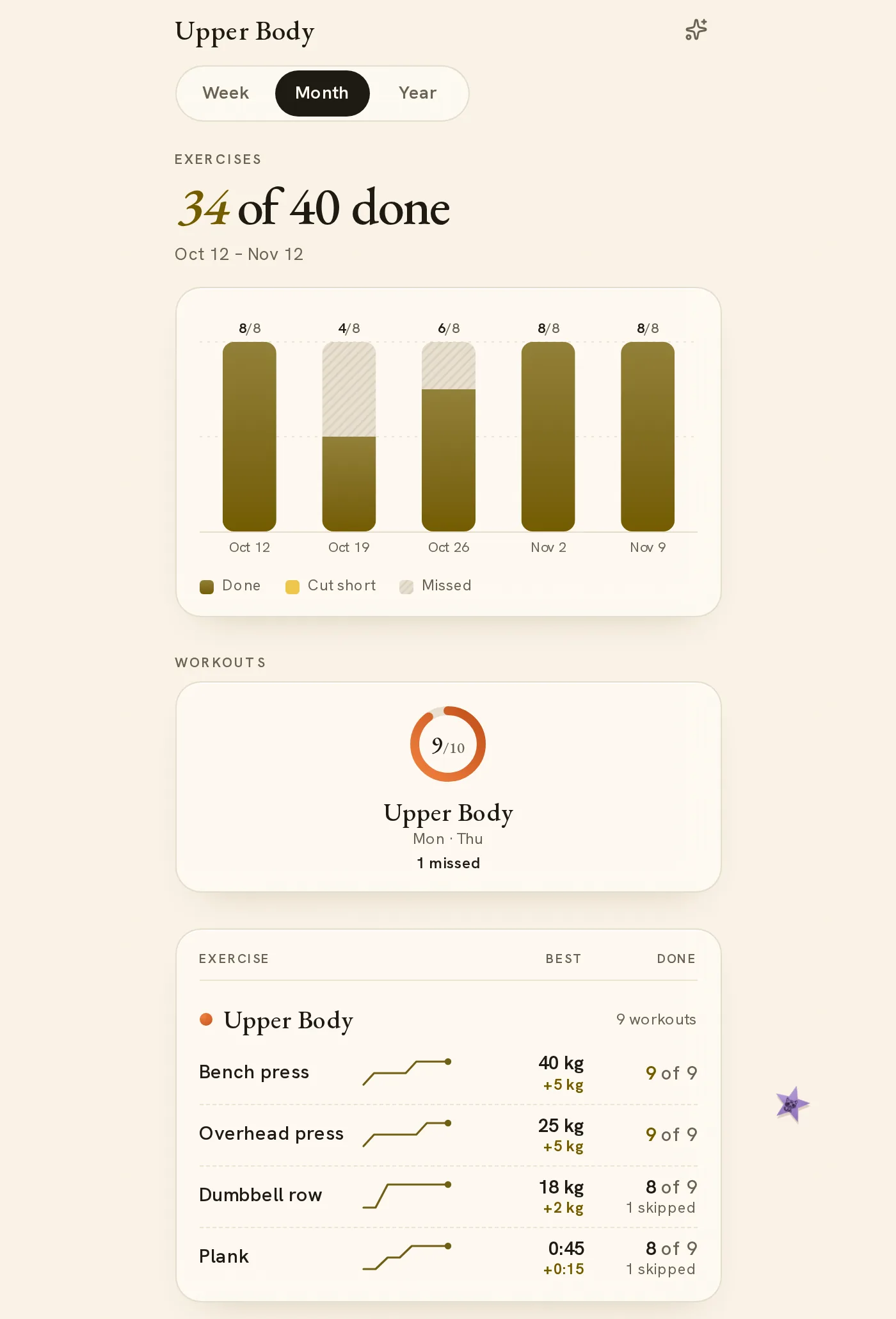
Best uses one measurement for each exercise: load first, then repetitions, duration and distance.
Stats count exercises and not only sessions, so a session that you cut short differs from a full session.
The Routines guide explains routine stats.
How Ginger builds and changes a workout
Add workout opens a chat with Ginger. The Ask Ginger button in an open workout opens the chat for that workout.
Tell Ginger the exercises, the sets, the targets and the training days. For example: “Create an Upper Body workout on Monday and Thursday at 6 pm for 1 hour. Bench press, 3 sets of 8 at 40 kg. Plank, 3 sets of 45 seconds.”
After the workout exists, you can ask for these changes:
- Add, remove or rename an exercise.
- Change the sets or the targets for all later sessions. For example: “Raise the bench press to 42.5 kg.”
- Change the targets of one session before you start it. Ginger shows the change with an Apply button before it saves.
- Change the days, the time or the length, or skip or move one session.
- Record a session that you describe in a message.
The instructions for Ginger say to keep the exercises that you name and not to invent targets or clock times. A workout without targets also saves. Ginger records only the results that you report.
Workouts on Home and in the Planner
Home has a Workouts block. It shows the workouts of the day with the time and the number of exercises. Start opens the workout in the block, with the same set rows and Finish.
A workout shows Now from 30 minutes before its time until the end of its length, and Home moves the block to the top.
The Planner shows each session on its day, with the time and the length. Select the workout name to open the workout in a dialog, where you can start, log sets and finish. Edit task in the dialog shows the schedule and repeat fields.
To use Workouts, sign in and ask Ginger for a workout.