
How Home Works in Play This Life
The parts of Home in Play This Life: the day line, a block for each feature, the order of the blocks, and the bar for Ginger, your AI assistant.
Ready plan: Daily Plan for a Remote Worker Who Wants to Get Organized
Home in Play This Life shows the work for today from your chores, habits, routines, workouts and projects in one place. Each feature has a block, and you do the work in the block. We built Home so that you do not open each feature to see your day. Ginger, your AI assistant, has a bar at the bottom of Home for your messages. Home opens after you sign in.
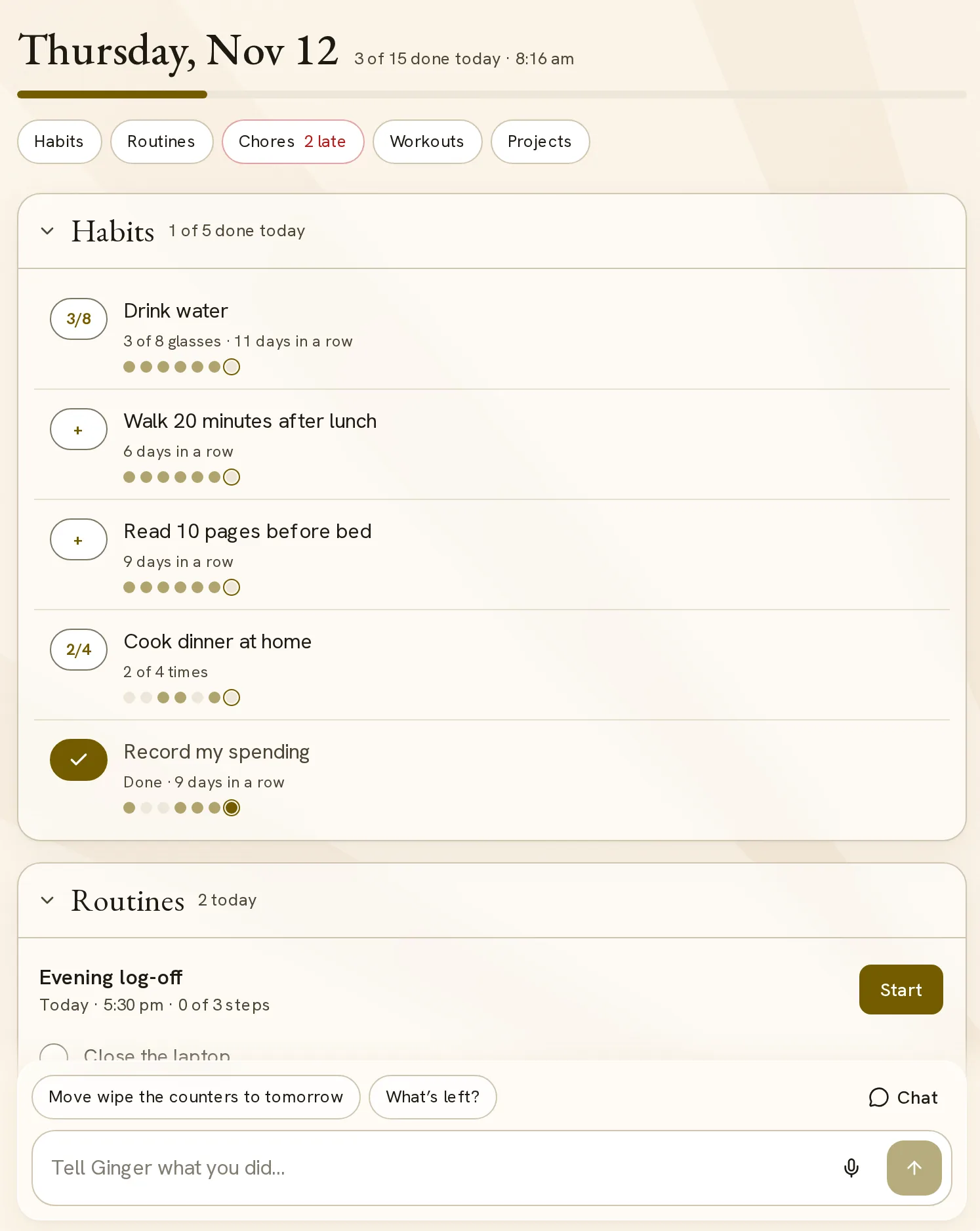
The day line
The top of Home shows the date and the time. A count, for example “4 of 7 done today”, adds the work from all blocks. A bar below the date shows the same count.
| Block | Counted work |
|---|---|
| Chores | Chores that are due today or done today. Anytime chores are not in the count. |
| Habits | Habits that are due today. |
| Routines and Workouts | Sessions that are scheduled today or done today. |
| Projects | Project sessions that are scheduled today or done today. |
The date follows the Day start setting in Account. With a day start of 3 am, Home at 1 am still shows the previous date.
With three or more blocks, a row of buttons below the bar opens each block. The Chores button shows the number of late chores, for example “2 late”. Another button shows “now” when a session in its block is on.
Blocks and their order
Home has a block for each of these features when the feature has items: Chores, Habits, Routines, Workouts and Projects. Home applies three rules to order the blocks:
- A block with a session that is on now comes first. It has the tag Now.
- A block whose oldest item is less than 7 days old comes next. It has the tag New.
- The other blocks follow by use score, highest first.
The use score of a feature increases by 1 on each day that you record or change its tasks. It decreases by 10 percent for each day without use.
A block folds to one line when its score is below one quarter of the highest score. A block with a tag, late work or work still due today does not fold. The folded line shows the most ready item and its state, for example “Drink water: 2 of 8 glasses”. Select the heading of a block to open it or fold it.
An open block shows five rows. A button, for example Show all 12, shows the other rows.
This order puts current work first, then the features that you use most. A block with items always stays on Home.
The Chores block
The block lists your active chores, most ready first. Each row gives the reason for its position, for example “2 days late · last done Sat”. A late chore has the label Late.
- Select the checkbox to complete a chore. A notice shows Done and an Undo button.
- An Anytime chore has a Log button. It gets the label Time again when your usual gap passes.
- A switch selects Next or By room. By room groups the chores by list.
- The plus button, Add chore, opens the chat with Ginger.
- Select a chore name to open its details.
While you have fewer than three chores, the block suggests common chores. The Chores guide describes lists, repeat rules and missed days.
The Habits block
The heading shows a count such as “3 of 5 done today”. The order of the habits is: due and not done, not scheduled today, done.
Each row has one button:
- A plus sign records one check-in.
- For a habit with a count, the button shows the progress, for example “2/8”. Each selection adds 1.
- A tick shows a completed habit. Select the tick to reverse the last check-in.
The line below the name shows progress and the streak, for example “2 of 8 glasses · 12 days in a row”. Seven dots show the last six days and today. A habit that is a workout opens that workout.
A check-in is one selection, so a habit takes little time to record. The Habits guide describes counts, schedules and streaks.
The Routines and Workouts blocks
Each of these two blocks lists the sessions for today in this order: on now, still to do, done. Sessions for other days are behind Show all.
A session is on from 30 minutes before its time until its length ends. Without a length, it is on until 2 hours after its time.
Each row shows the name and the timing, for example “Now · 7:00 am”, “Today · 6:30 pm” or “Next Mon”. A routine row shows its step count and, before you start, its steps. A workout row shows its exercise count and its exercises, with the number of sets for a workout still to do today.
- Select Start. The routine or workout opens inside the block, with the same controls as in its own feature.
- Do the session and finish it there.
- Select Close to return to the row.
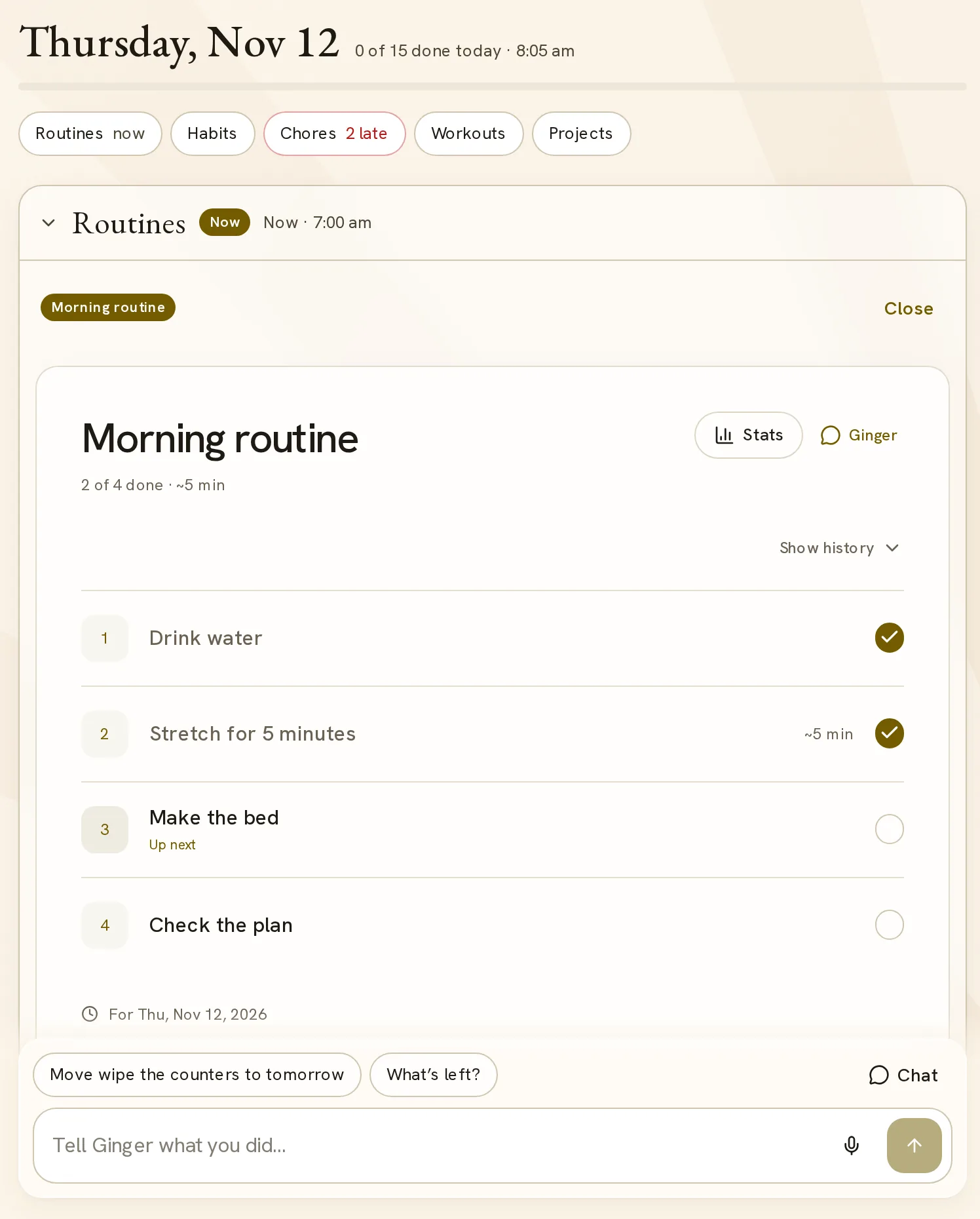
If you select a step of a routine, the routine starts with that step checked. A session in progress shows Resume in place of Start.
The session opens in the block, so you do not leave Home. See the Routines guide and the Workouts guide.
The Projects block
This block shows the active projects from the Work feature. Each project shows its name, its step count, a progress bar and the next step. A line that starts with Then names the step after that.
Beside the step count, the row states the last movement, for example “Moved today” or “No progress in 4 days”.
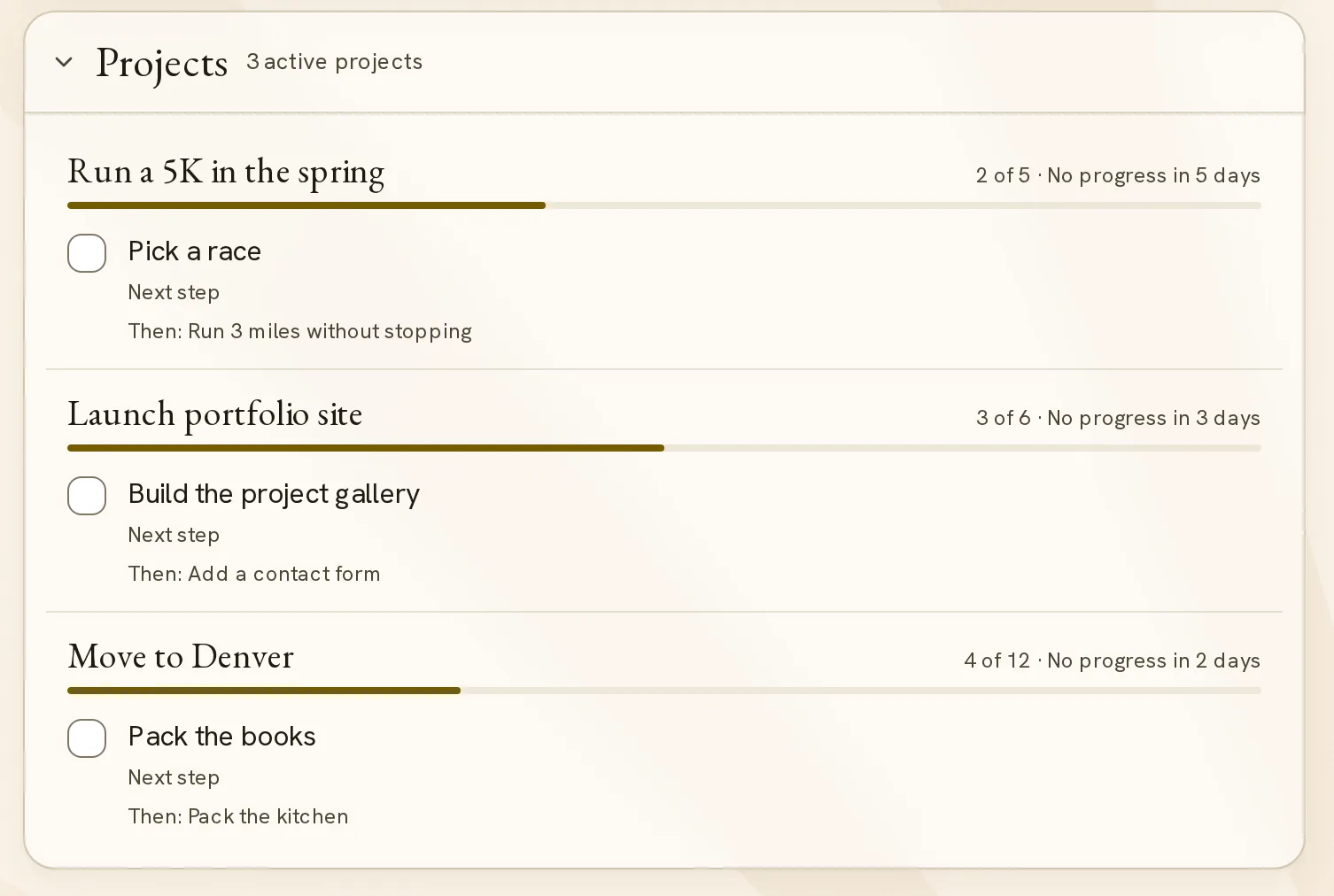
A project with a session that runs or is on now comes first. The other projects follow by the number of days since a completed step, highest first. A project with no next step gets the lowest rank. Thus a project without recent progress rises.
Select the checkbox to complete the next step. If a project has no next step, the row says Tell Ginger what’s next.
A project session is a repeating task inside a project, with a clock time and a length. While a session is on, running or paused, the project row shows it with these controls:
| Control | Effect |
|---|---|
| Start | Starts a timed run. Pause stops the run, and Resume starts a new run. |
| Tick button | Keeps the whole block without a timed run. |
| Done | Keeps the session for today and stops the run. |
| Log time | Is in the menu of the session. It opens From and To fields, and Save adds one finished run. |
| Undo | Reverses the keep. |
A kept session is in the count of the day line. It does not change the step count, because only a completed step is progress. See the Work guide.
The Ginger bar
The bar stays at the bottom of Home. Its box shows Tell Ginger what you did…. Write one sentence to record work, move a task or add a task. For example:
- “I did the dishes and 20 minutes on the tax return.”
- “Move the bathroom to Saturday.”
- “Add a 30-minute run on Sunday morning.”
Above the box, the bar offers a maximum of two suggestions. Home selects them in this order:
| Suggestion | Condition | Effect |
|---|---|---|
| Move a late chore to tomorrow | A chore is late. | Sends the message with the name of the chore. |
| What’s left? | Work for today is not done. | Sends “What’s left today?” |
| Log something | No work for today remains. | Puts “I did” in the box for you to finish. |
| Add a chore | Home has fewer than three items. | Puts “Add” in the box for you to finish. |
A sent message, a suggestion or the Chat button opens the full chat on Home. On a phone, the chat is a sheet over Home. On a wider screen, it is a panel above the bar. The chat also opens when Ginger asks you a question.
To close the chat, select Collapse chat, press Escape or go back. The Ask Ginger guide describes what Ginger can do.
Home for a new account
Setup saves your first tasks and then opens Home. Home shows a block for each feature that has tasks. For the first 7 days, a block has the tag New and stays open.
If you came from a chore setup, Home keeps the Chores block before you have chores. The block shows Add the chores you repeat or Log a chore you just did. One selection adds a suggested chore.
If an account from the general setup has no items in any feature, Ask Ginger opens in place of Home.
Reminders and install
In the installed web app, Home starts with the block Turn on reminders until notifications are on. Select Turn on to get a notification before timed work. If the device blocks notifications, the block shows Reminders are blocked.
In a browser that can install the app, the last block is Keep Play This Life one tap away. It has an Install button. The dismiss button removes the block on that device.
To see Home with your own day, set up your account.