
How the Planner Works in Play This Life
The parts of the Planner in Play This Life: seven days, timed blocks, repeats, moves, the day start, and how Ginger, your AI assistant, plans a week.
Ready plan: Daily Plan for a Freelancer Who Wants to Get Organized
The Planner in Play This Life shows seven days of work in one schedule. Chores, habits, routines, workouts, project steps and single tasks appear together on their days. We built it so that one view shows what is planned for each day and at what time. Ginger, your AI assistant, puts work on days and moves it from your messages.
What the Planner shows
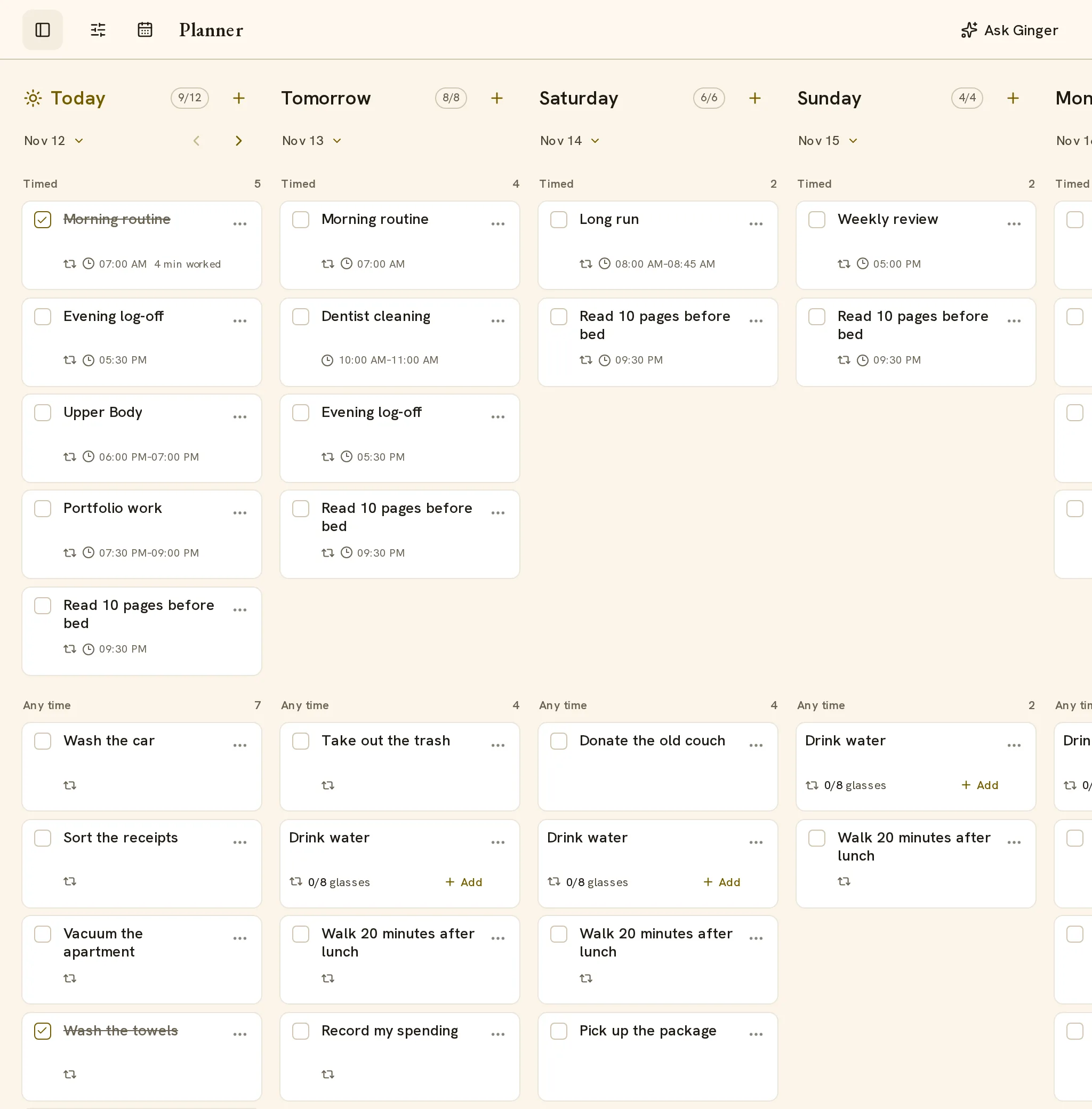
The Planner has one column for each day and starts with today. A phone shows one column. A wide screen shows up to seven. Scroll sideways to see the other days.
Each column has the heading Today, Tomorrow or the name of the weekday. A counter next to the heading shows the remaining and total commitments of the day, for example “2/5”.
The date is below the heading. Select it to open a month grid with Previous, Today and Next. If you select a date outside the seven days, the Planner shows seven days from that date.
A column sorts its cards into groups. A group appears only when it has cards.
| Group | Contents |
|---|---|
| Overdue | A task with a step that is past its deadline. The card shows Step overdue and the name of the step. |
| Timed | Work with a clock time, earliest first. |
| Any time | Work for that day without a clock time. |
| Flexible targets | Weekly and monthly targets. You select the days. |
| Recorded activity | Work that you recorded on that day. |
The counter excludes flexible targets and recorded activity, because they are not daily commitments.
Cards
A card has a checkbox, the task name and a menu. A timed card shows its time. A repeating task shows a repeat icon. A task at or past its deadline shows Due today or Overdue with the date.
Select the checkbox to complete the work. Select it again to undo the completion. A task with a count or an amount shows its progress, for example “1/3”, with Log or Add in place of the checkbox.
Select the task name to open Task details. For a routine or a workout, the details have a link to its own view, for example Open workout.
The day calendar
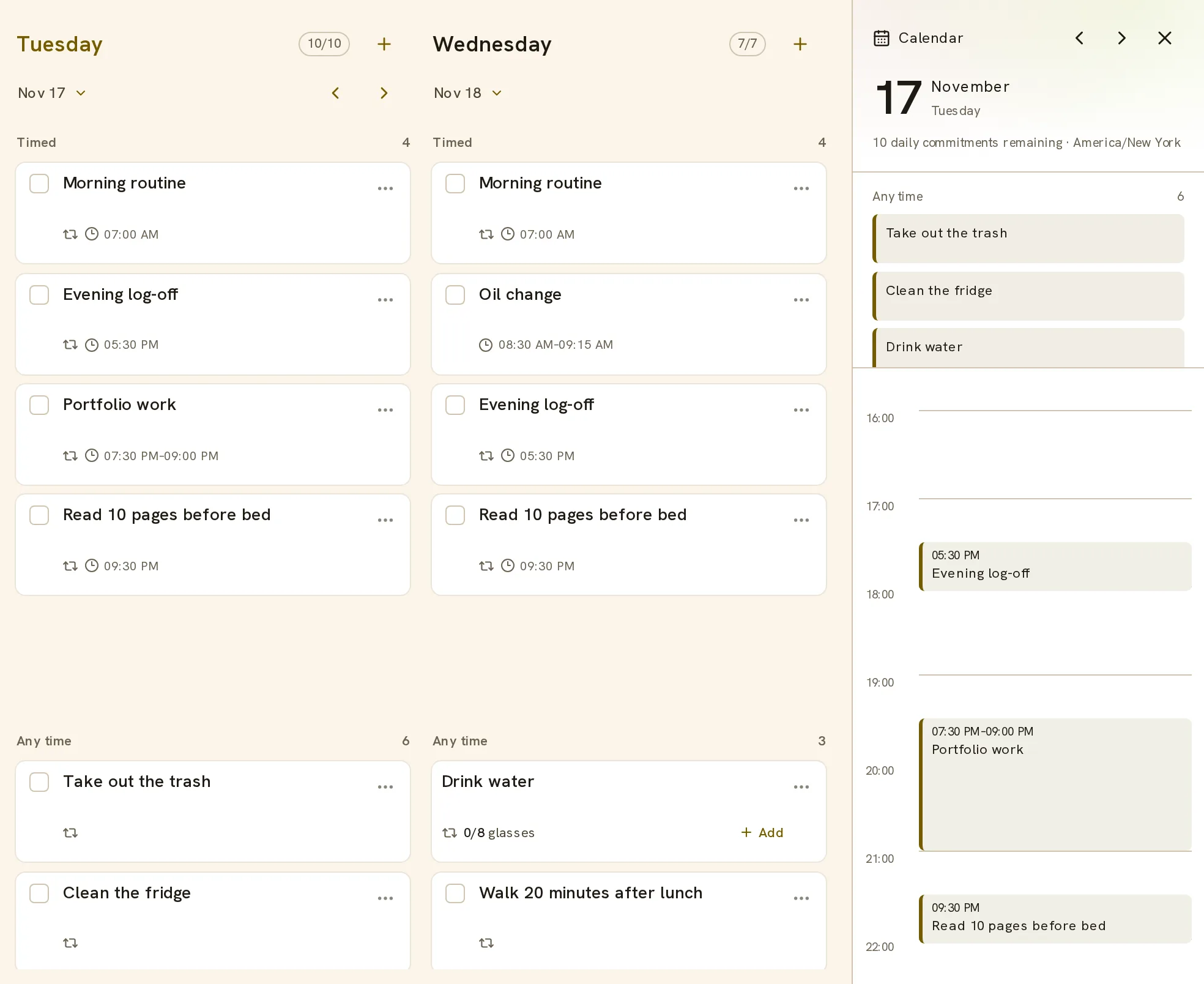
The Calendar button in the header opens a panel for the selected day. On a wide screen, the panel is open from the start.
The panel shows the date, the number of commitments that remain and your timezone. Any time and Flexible targets are lists at the top. Below them, a timeline has one row for each hour of your day.
Timed work sits at its time on the timeline. Two items at the same time sit side by side. For today, a line with the label Now marks the current time.
Timed blocks and their length
A task can have a planned length. On a timed task, the length makes a block. The card shows the start time and the end time, and the timeline draws the block to scale. A task without a clock time shows its length as text, for example “~30 min”.
A timed subtask that is outside the block of its parent on that day shows a warning mark.
The length is the plan. Time that you record is a separate value. A card shows it as, for example, “45 min worked”.
To set a length, tell Ginger. For example: “Make my Tuesday writing block 90 minutes.” A timed repeat with a length inside a project is a session. The guide to projects describes sessions.
How repeats appear
A repeating task is one task with a rule. The Planner shows one card for each turn in the seven days.
| Rule | In the Planner |
|---|---|
| Fixed days with a time | In Timed, on each day of the rule. |
| Fixed days, all day | In Any time, on each day of the rule. |
| Count for each day | In Any time, with the label Daily target and a progress control. |
| Count for each week or month | In Flexible targets, as one card for each period, with the label Weekly target or Monthly target. |
| After completion | On the day that the gap after the last completion ends. |
| Anytime | In Recorded activity, on each day that you log it. |
A weekly target has no fixed day, because the count is the commitment. The guides to habits, routines, workouts and chores describe the rules of each feature.
Move one turn or change every future turn
These are two different changes. The Planner keeps them apart, because one unusual week is not a new schedule.
| Change | Steps | Result |
|---|---|---|
| Move one turn | Drag the card to a highlighted day. Or open the card menu and set Move to date. | Only that turn moves. It keeps its clock time, deadline and reminder. The rule stays the same. |
| Skip or restore one turn | Open Task details, select Edit task, open Repeats and set Edit scope to This window. | Skip this window removes that turn. Restore this window returns a moved or skipped turn to the rule. |
| Change every future turn | In Repeats, keep Edit scope on This and future, change the rule and select Save repeat. | The new rule starts after the current turn. Completed history stays. |
The same drag and the same Move to date field change the day of a task that does not repeat.
A step that follows the schedule of its parent moves with the parent. Its menu shows the text “Plan its parent instead.”
Missed and late work
Each turn stays on its own day. To see an earlier day, select the date below a heading and select a day in the month grid. The earlier day shows its plan and the work that you recorded.
You can record work early or late. Select the checkbox on the card of that turn.
The rule of a repeat sets what a missed turn does next. The Chores guide describes the three settings.
In Filters, the Unplanned button shows a count and opens a list. The list shows tasks that have no day in the plan. One example is a task whose planned day passed while its deadline is still ahead. Set Plan for to put a task on a day.
When a day starts
A day can start after midnight. We built this for people who stay up late. For them, work at 1 AM is part of the evening.
- Open Account and find Day start.
- In Day starts at, select an hour from Midnight to 6 AM.
- Select Save day start.
Work before that hour counts for the day before. With a day start of 3 AM, a task at 1:00 AM on Tuesday is in the Monday column. A completion at that time counts for Monday.
The timeline of the day calendar runs from one day start to the next. As a result, the evening and the hours after midnight are in one column. When you enter a time before the day start, the schedule fields show a note such as “Night of Sun, Oct 4”.
A new day start applies to later days. Earlier days keep the start that they had.
Filters and new tasks
Filters has a search field and a scope list. The scope list limits the Planner to the subtasks of one task, for example one project. Clear removes the filters.
To add a task by name, select Add task on a day column, type the name and press Enter. The task is saved for that day.
How Ginger plans and reschedules
Ask Ginger in the header opens a chat. When the Planner is empty, Plan with Ginger opens the same chat. Tell Ginger the work, the days, the times and the lengths in your own words.
- “Gym on Monday, Wednesday and Friday at 7 AM for one hour.”
- “Move the laundry from today to Saturday.”
- “From next Monday, start my writing block at 6 PM.”
Ginger has written instructions for schedules. They say:
- Take today, the timezone and the day start from your account. Calculate dates with a date tool.
- Add no clock time that you did not give. A weekday without a time is all day.
- Change one turn as an exception: skip it, move it or restore it. Leave the rule as it is.
- Change a rule with a scope: this and future turns, all uncompleted turns, or from a date.
- Send the length with each change of a time, so that a block keeps its length.
- When the time differs by day, make one repeat for each time.
You can also ask Ginger which work was on time, late or missed. The guide to Ask Ginger describes the chat.
The Planner and Home
Home shows today. It has one block for each view that you use: Chores, Habits, Routines, Workouts and Projects. The Planner shows the same tasks across seven days in one schedule.
Both read the same saved tasks and use the same day start. As a result, a completion on Home also shows on the card in the Planner.
To use the Planner, set up your plan.