
How Projects Work in Play This Life
The parts of the Work feature in Play This Life: projects, steps, groups, sessions, progress, and how Ginger, your AI assistant, plans a project.
Ready plan: Daily Plan for a Freelancer Who Wants to Start a Side Project
The Work feature in Play This Life holds your projects. A project is a body of work with an end. A job project, a side project, a move and a tax return are examples. Each project has steps. The app counts the completed steps and shows the next step. We built it to keep one next step in view for each project. Ginger, your AI assistant, creates a project and its steps from your messages.
Your projects
Select Work in the sidebar. The heading Your projects shows the number of projects. Each project is a card with a cover picture, the project name and a progress bar with a count, for example “3 / 5”. If the project has groups, the card names the first two.
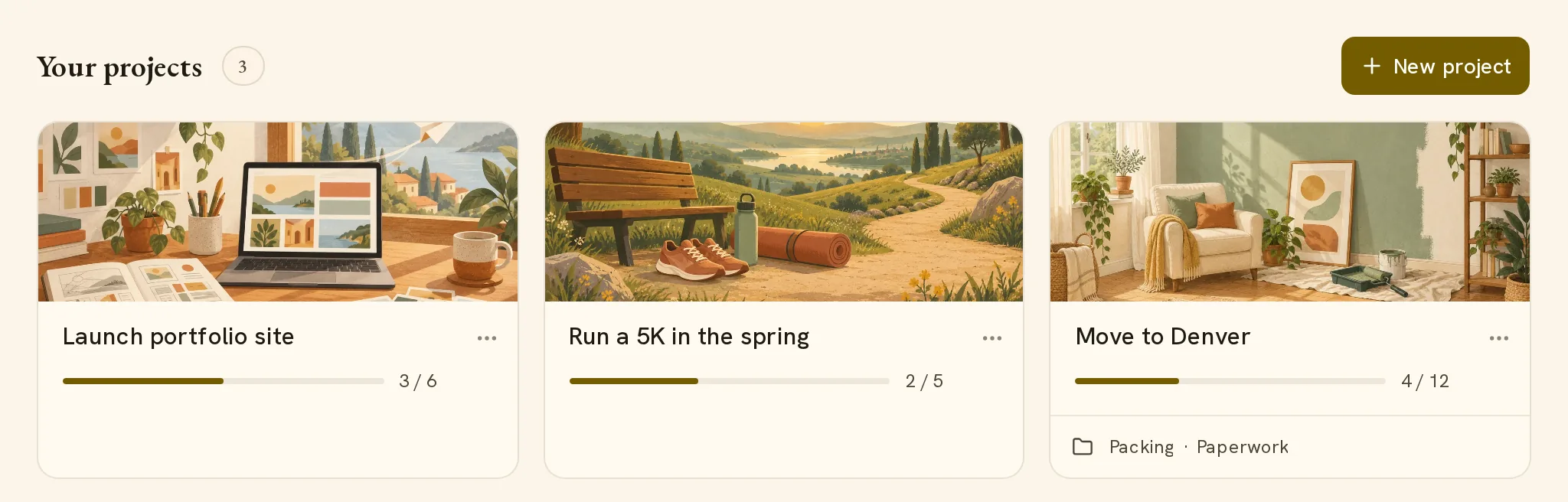
Select a card to open the project. The card menu has Archive… and Move to Trash….
The app suggests a cover from the words in the project name. For example, a name with “trip” gets the Travel cover. To select one of the 12 covers, select Cover on the picture.
Steps, nested steps and groups
A step is a task in the project. A step can have steps of its own. For example, “Book the movers” can contain “Get three quotes” and “Select a date”.
A group is a named set of steps. A move can have the groups “Packing” and “Paperwork”. A group can contain subgroups.
The groups appear as filters above the steps. All shows the full project. Each filter shows its number of open steps. Select a group to see only its steps. For the open group, the menu next to the filters includes New subgroup, Rename, Move… and Archive….
A group only sorts steps. The progress count ignores the group and counts the steps in it.
The board and the tree
A project opens as a board with three columns. A switch selects Board or Tree. The tree shows the same steps as an outline, with each nested step below its parent.
| Column | Contents |
|---|---|
| To do | Open steps that you did not start. |
| In progress | Steps that you started. These steps are also part of the work for today. |
| Done | Completed steps. |
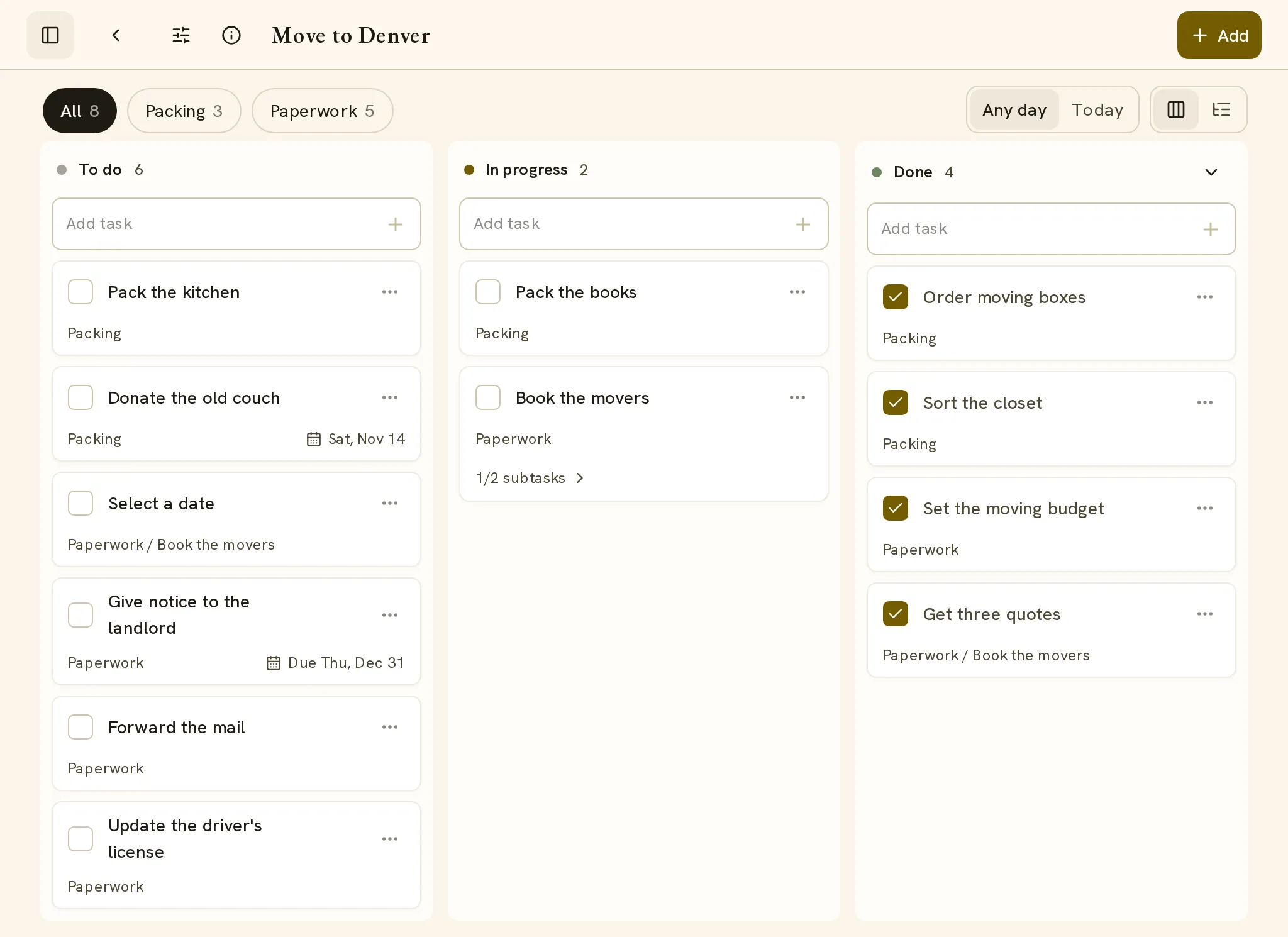
To move a step, drag its card to another column. You can also open the card menu and select Move to column. To complete a step, select its checkbox. A notice shows Completed and an Undo button.
Each column has an Add task field. Type a name and press Enter. The step goes into that column.
A card with nested steps shows a count, for example “1/3 subtasks”. Select the count to open those steps on the board.
A second switch selects Any day or Today. Today shows only the work for today. Filters has a search field, a Subtasks setting and a Sort setting.
The columns separate the steps that you started from the steps that wait. The In progress column shows the work that is open now.
The next step
The next step is the first open step in the order of the tree. A step with open nested steps waits, and its nested steps come first. Repeating tasks and groups are not next steps.
The order of the steps is the plan. For this reason, the app reads the next step from the order and does not ask you for a priority.
Progress and partial progress
The count on a project shows the completed steps and the total, for example “3 / 5”. It includes the nested steps at each level. It does not include repeating tasks, sessions or groups. A repeating task has no end, so it cannot show how near the project is to its end.
A step can have a target amount, for example 40 boxes to pack. The card then shows a progress control with the amount done and the target. You record each amount when you do it. The step stays open in the project count until it is complete.
Sessions: timed work in a project
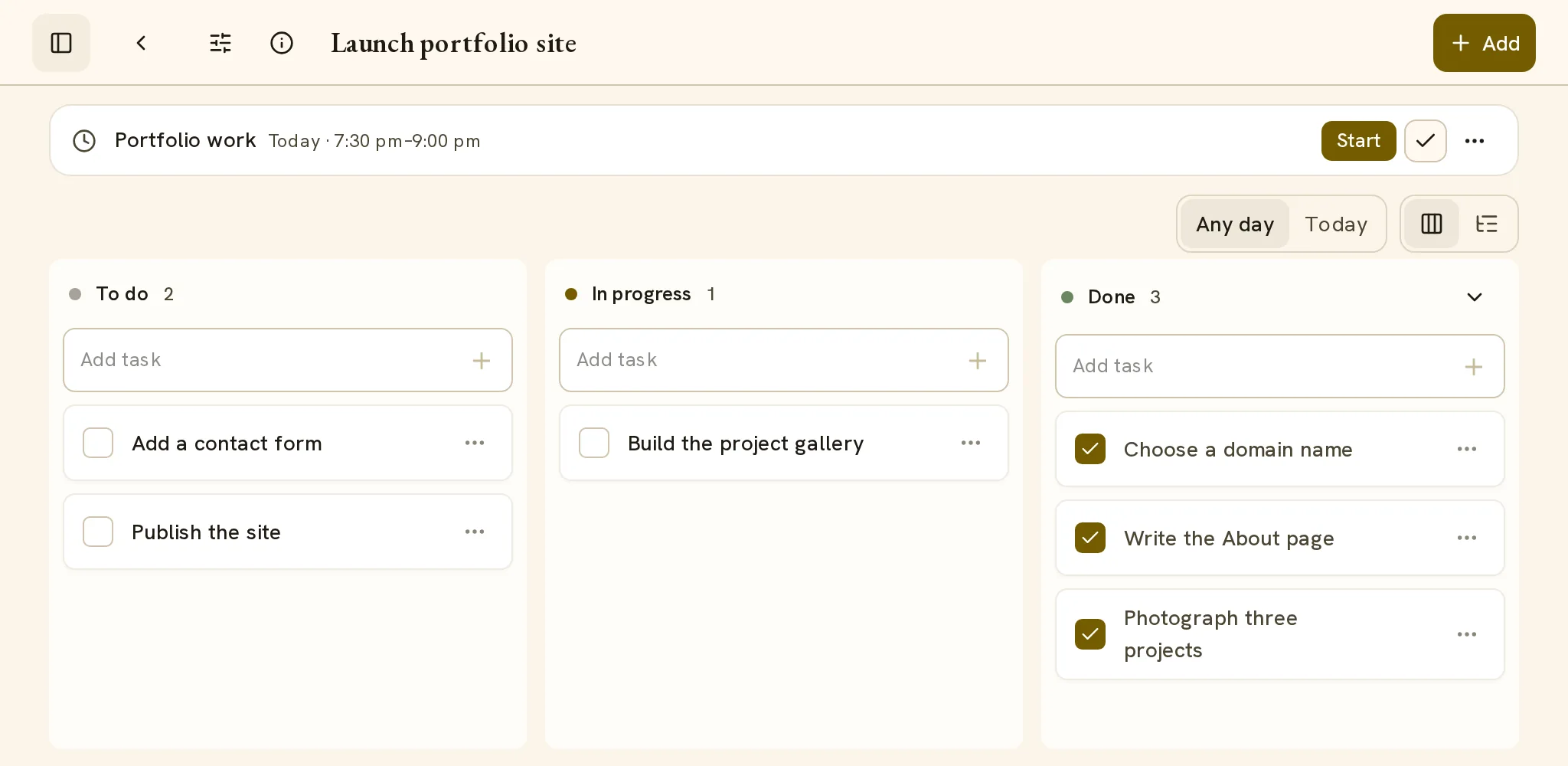
A session is time that you set aside for a project. It is a repeating task with a clock time and a length, in the project or in one of its groups. An example is “Portfolio work” on Tuesdays and Thursdays from 6:00 to 7:30 pm.
The project shows the sessions for today in a row above the steps. The next session shows its controls. The other sessions open in the list Today’s sessions.
| State | Example row text | Controls |
|---|---|---|
| Ready | “Today · 7:30 pm–9:00 pm” | Start, a check button that keeps the full block, and a menu with Log time and Mark done |
| Running | “Started 6:05 pm” | Pause and Done |
| Paused | “20 min of 1 h 30 min” | Resume, Done and the menu |
| Kept | “Kept · 7:30 pm” or “Partly · 55 min of 1 h 30 min” | Undo |
Start opens the group that contains the session, so the board shows the steps for that time. Log time records a From time and a To time for today. A session that you end before its full length shows “Partly” with the time worked.
A kept session records that you did the time. It does not complete a step, and it does not change the project count. Time worked and steps completed are different facts, so the app records them separately.
A session has no steps of its own. For repeating work with fixed steps, see how routines work.
Finish and archive a project
When all steps are complete, the count is full, for example “5 / 5”. To remove the project from Work and from Home, open the card menu and select Archive…. The project moves to the archive with its steps, its groups and its history.
To get a project back, select Archive in the sidebar and then Restore. You can also archive a project that you stop before its end.
How Ginger plans a project
Select Ask Ginger in the sidebar and write the result that you want. Include the facts that you know, such as a date or the parts of the work. Ginger creates the project, its groups and its nested steps in one save.
For example: “I move to Denver on March 1. Make a project and divide it into steps.”
You can also add to a project: “Add ‘Cancel the old internet plan’ to my move project.” For timed work: “Set aside Tuesday and Thursday from 6 to 7:30 pm for my portfolio project.”
Ginger has written instructions for this work. They say:
- Save a plan of steps toward one result as a project.
- Read what the account already holds, and change it when that is what you mean. Create only what is new.
- Use the facts from your words and your saved tasks. Ask one short question when an important fact is missing.
- Do not invent clock times or targets.
- Save project time as a timed repeat with a length, in the project or in its group.
- Record work only when you report it.
Ginger can also rename, move and date steps, and complete a step that you report. It can start, pause and finish a session, and archive or restore a project. See how Ask Ginger works.
To create a project by hand, select New project and type its name.
Projects on Home and in the Planner
Home has a Projects block. For each project it shows the name, the count, a progress bar and the next step with a checkbox. The line Then: names the step after it. Select the checkbox to complete the next step from Home.
Each project also shows a status: “No progress yet”, “Moved today”, “Moved yesterday”, “No progress in 4 days” or “No next step”. A kept session does not count as progress in this status.
A project with a session that is running, paused or on now comes first. The block then has the label Now, and the project shows the session with its controls. The next step then comes from the group of that session. After that, the project with the most days without progress comes first, so a stopped project stays in view.
The block shows five projects, and Show all shows the others. See how Home works.
In the Planner, a step with a date appears on its day. A session appears as a block at its time on each of its days, and the block shows the time that you worked. See how the Planner works.
To use projects, start with Play This Life.