
How the Inbox Works in Play This Life
The parts of the Inbox in Play This Life: capture by name, lists, steps, dates, the Archive, and how Ginger, your AI assistant, adds and sorts tasks.
Ready plan: Daily Plan for an Office Worker Who Wants to Get Organized
The Inbox in Play This Life holds the tasks that have no date. You write a task by its name and decide the other details later. We built it to save a thought in one line, before you know its day, its list or its project. Ginger, your AI assistant, adds tasks from your messages and helps you sort the Inbox.
What the Inbox holds
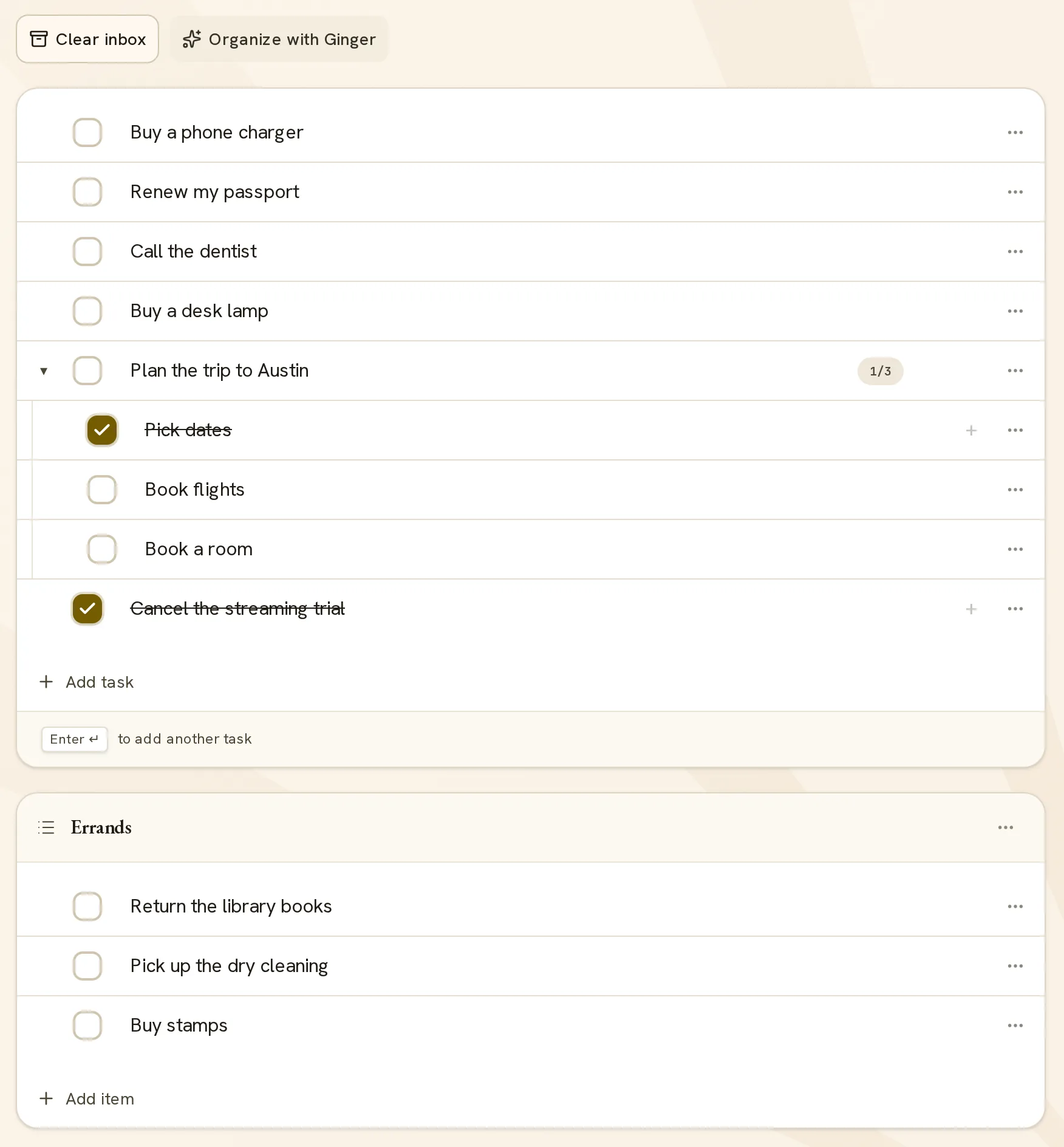
The Inbox shows tasks, chores and lists that have no date, no deadline and no repeat rule. A task that you add by name starts here. A task that Ginger adds is saved with your other tasks, and the card in the chat opens it.
An item stays in the Inbox until one of these changes.
| Change | Where the item shows after the change |
|---|---|
| A date, a time or a deadline | The Planner. |
| A repeat rule | The Planner, when the rule gives the item a day. A chore also stays in Chores. |
| A new type: project, habit, routine or workout | Work, Habits, Routines or Workouts. |
| A move into a project | Work, in that project. |
| Archive | The Archive. |
When a task leaves the Inbox, its steps leave with it. A completed task stays in the Inbox with a tick.
A dated task already has a day in the Planner. The Inbox then shows only the items that still need a decision.
Add a task by name
- Select Add task. A line opens with the text What’s on your mind?
- Type the name of the task.
- Press Enter. The app saves the task and opens a line for the next task.
- Press Escape to close an empty line.
The app also saves a line when you stop typing or leave the line. A name can have 160 characters. To change a name, select it and type.
A task needs only a name at this point. All other details can wait.
Lists
A list is a name with tasks under it. Select New list, type the name and press Enter. The first line of the list then opens.
The Inbox shows each list as a block with its name, its tasks and the button Add item. Select the list name to change the name or add a description.
You select the names, for example Errands, Home, Reading or Taxes. A list can hold tasks, chores and other lists. The lists in Chores are the same lists.
A list groups tasks by subject. Use a project when the tasks lead to one result.
Steps
A step is a task under another task. The app uses the label subtask. These are the ways to add a step:
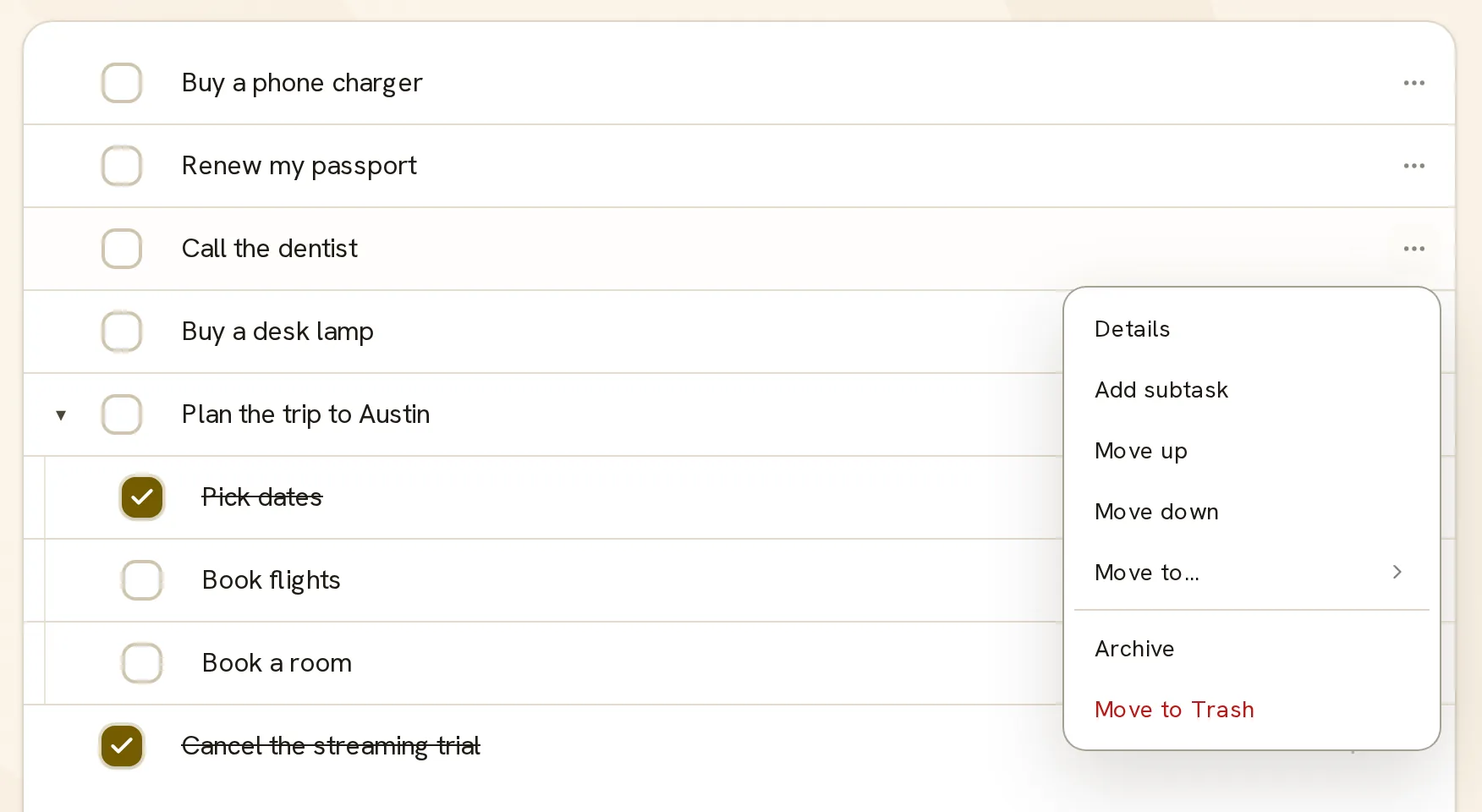
- Open the row menu and select Add subtask.
- Select the + button on the row.
- Press Tab on a task to put it under the task above it. Press Shift and Tab to move it back.
- Drag a task onto another task.
A task with steps shows a count, for example 1/3. The count includes the steps of all levels. The arrow beside the task hides or shows its steps.
A step is a full task with its own name, checkbox and menu. For this reason, a step can have steps of its own.
Details and targets
In the row menu, Details opens Task details. The fields are Title, Description and Progress target.
| Setting | How you complete the task |
|---|---|
| Check when done | Select the checkbox one time. |
| Count completions | Record a number of completions, for example 5. |
| Measure work | Record an amount of one measurement, for example 40 kilometers. |
A task with a target shows its amount, for example “2 / 5 completed”, and the control Record work. Each record can have a note.
Dates and deadlines
Ginger sets dates. Tell Ginger the task and the day, the time or the deadline. For example: “Put ‘Renew passport’ on Friday at 10 AM.” The task then leaves the Inbox and shows in the Planner.
A task has two kinds of date. The intended time is when you plan to do the work. The hard deadline is the last day for the work. A deadline with no time lasts to the end of that day.
You can also set dates without Ginger. A task in a Ginger reply has an arrow with the label Open in Tasks. In that view, the row menu has Add intended date with Today, Tomorrow and End of this week. The row menu also has Task details, with the fields Intended time and Hard deadline.
A task with a clock time gets a reminder before that time. The reminder is a notification in the installed app, when notifications are on.
Move a task
In the row menu, Move up and Move down change the order. Move to… shows Inbox and each open task and list in the Inbox. Select one to put the task there. You can also drag a row by its handle.
To move a task into a project, ask Ginger. For example: “Move ‘Book the venue’ into my Wedding project.” The task then shows in Work.
Complete and undo
To complete a task, select the checkbox on its row. The tick shows before the save finishes, and the name gets a line through it. If the save fails, the row shows an error message.
To undo the completion, select the checkbox again.
A completed task stays in the Inbox and does not accept new steps. The Inbox shows what you did until you archive it.
Clear the Inbox and the Archive
The row menu has Archive and Move to Trash. Each one asks you to confirm, then moves the task and its subtasks.
Clear inbox archives all Inbox items in one action. The app shows the number of items, including lists and their subtasks. Select Archive all to confirm.
The Archive is beside the Inbox in the sidebar. It lists the archived tasks of all features, below the heading Set aside, saved here. The field Find a task… filters the tasks by name. Restore returns a task with its subtasks and its history.
To restore a task from Trash, ask Ginger.
The Archive keeps the records of a task. For this reason, you can clear the Inbox and keep your history.
How Ginger adds and sorts tasks
You write to Ginger in your own words, in Ask Ginger or in the Ginger bar on Home. One message can add many tasks. For example: “Add three tasks: renew my passport, call the dentist, buy a desk lamp.”
One message can also add a task with its steps. For example: “Add ‘Plan the trip’ with the steps pick dates, book flights and book a room.”
Ginger has written instructions for tasks. They say:
- Put a new task at the top level unless you name a parent.
- Select the type for each item of a message separately.
- Make a plan of steps toward one result a project.
- Read the saved task before each change.
- Take clock times and targets from your words. Do not invent them.
In the Inbox, Organize with Ginger sends the message “Suggest how to organize my Inbox.” and opens the chat. Then tell Ginger which changes to make.
You can ask Ginger for these changes:
- Make a list and move tasks into it.
- Move a task into a project or under another task.
- Set a date, a time, a deadline or a repeat rule.
- Change the type of an item, for example from task to habit.
- Complete a task or undo a completion.
- Archive a task, move it to Trash or restore it.
Inbox tasks in the Planner and on Home
The Planner. A task shows in the Planner when it has a date, a deadline or a repeat rule. At that point, the task is no longer in the Inbox.
Home. Home has one block for each of Chores, Habits, Routines, Workouts and Projects. An Inbox item shows on Home when it belongs to one of these blocks. For example, a chore from the Inbox shows in the Chores block.
The Ginger bar is below the blocks on Home. Write a task in the bar, and Ginger adds it.
To use the Inbox, set up your planner.