
How Chores Work in Play This Life
The Chores feature in Play This Life: lists, repeat rules, missed days, last-done dates, and how Ginger, your AI assistant, adds chores.
Ready plan: Daily Plan for a Remote Worker Who Wants a Clean Home
The Chores feature in Play This Life lists the work that returns. Housework is one example. Paperwork, car care, pet care and work upkeep are others. It shows which chores are ready now and when you last did each one. We built it for chores that return a set number of days after you last did them. A fixed weekly day does not fit a chore that you do late. Ginger, your AI assistant, adds the chores and their repeat rules from your messages.
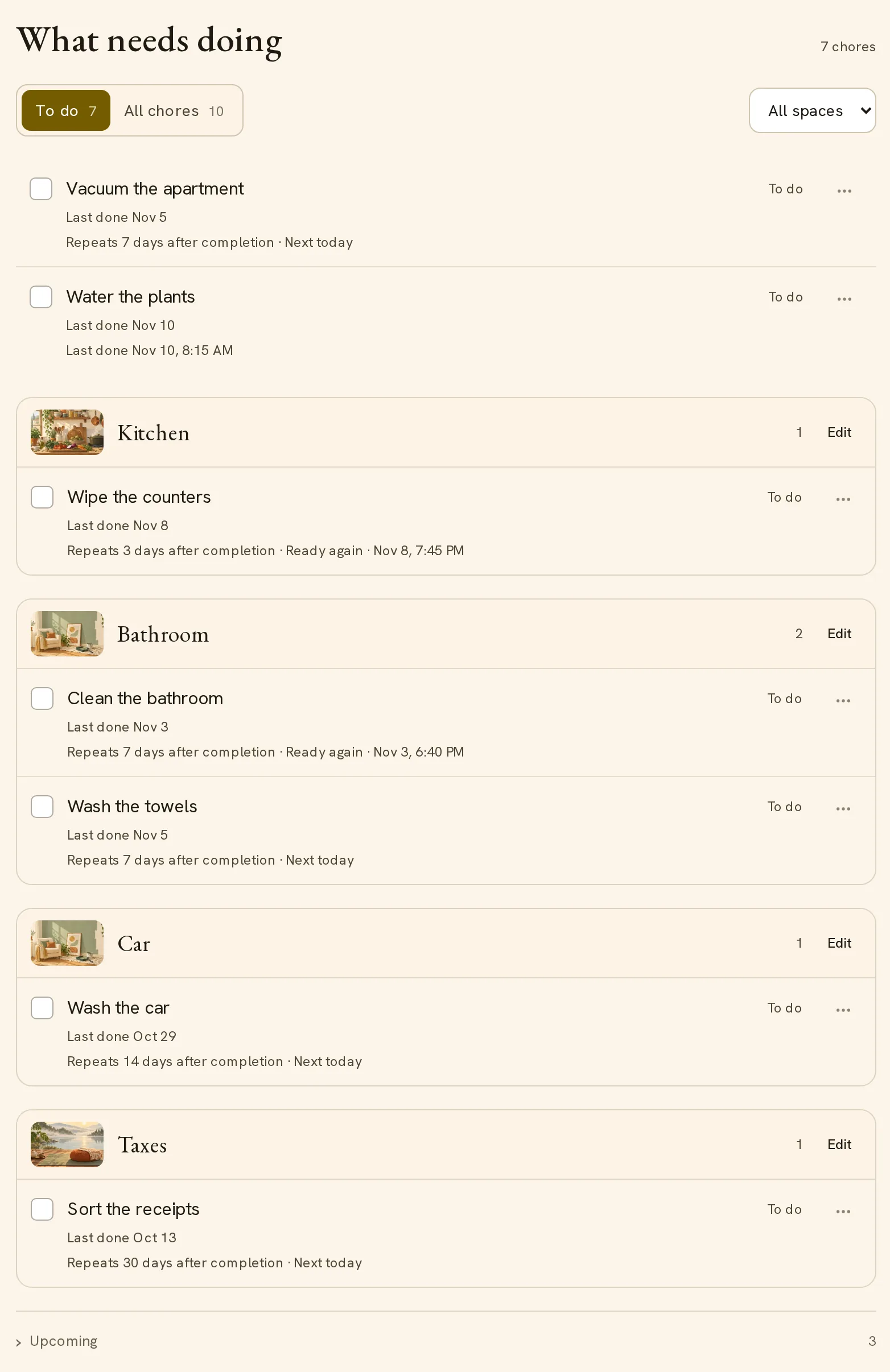
What Chores shows
The heading What needs doing shows the number of chores that are ready now. A switch selects To do or All chores. In To do, two closed sections follow the chores: Upcoming and Done today. A section appears only when it has chores.
| View | Contents |
|---|---|
| To do | Active chores that are ready now. A chore with no date and no repeat is also in this view. |
| Upcoming | Active chores that are not ready yet. |
| Done today | Chores that you completed today. |
| All chores | Every active or paused chore, ready or not. |
Each row has a checkbox, the chore name, the last-done date and, for a repeating chore, the repeat rule. A ready chore has the label To do. The row menu has more actions, including Task details, Move to…, Archive task and Delete task.
Lists: rooms or any other group
A list is a name with chores under it. You select the names. These are some ways to group chores:
- By room: Kitchen, Bathroom, Bedroom, Garage.
- By area of life: Home, Work, Family, Pets, Car.
- By subject: Taxes, Bills, Garden, Laundry.
You can mix these groups. For example, you can have Kitchen, Bathroom, Taxes and Car at the same time.
Chores shows each list as a block with its name, a chore count and an Edit button. Edit opens the details of the list, where you can change its name.
A list is optional. Chores without a list appear first, without a block.
The filter above the chores has the options All spaces, No list and one option for each list. The filter applies to all four views.
To move a chore to another list, open the row menu and select Move to…. Then select the list.
A list only groups chores. Each chore keeps its own repeat rule, because two chores in one list can need different gaps. Name each chore for the work, for example “Wipe the counters” or “Sort the receipts”.
How a chore repeats
Each chore has one repeat rule. The row shows the rule in words.
| Rule | When the chore is ready |
|---|---|
| After completion | A set number of days after the last completion. Example row text: “Repeats 7 days after completion”. |
| Fixed days | On the days of the rule, for example each Tuesday. Example row text: “Weekly on Tuesdays”. |
| Count in a period | Until you reach a count for the day, week or month. Example row text: “0/2 this week”. |
| Anytime | At all times. The chore has no due date. Row text before the first completion: “Log whenever you do it”. |
| No repeat | Until you complete it one time. |
An after-completion rule keeps the gap between two completions. With a 7-day gap, sheets that you change on a Wednesday are ready again on the next Wednesday.
A fixed-day rule keeps the calendar day. Use it when something outside your home sets the day, for example trash collection.
To change a rule, ask Ginger. You can also select the chore name, open Repeats, change the rule and select Save repeat. The Repeat mode names are Relative for after completion, Calendar for fixed days, Quota per period and Anytime.
What a missed day does
The result depends on the repeat rule.
After completion. The chore has one open turn at a time. Late days do not add turns. The chore stays in To do until you do it, and the next turn counts from that completion. If the bathroom was due on Monday and you clean it on Thursday, the next turn is 7 days after Thursday.
Fixed days or a count. The chore has one of three settings for missed turns. The setting is in the chore details, under Repeats, in the field Missed windows.
| Setting | Effect |
|---|---|
| Skip missed windows | The missed turn closes. The chore is ready again on its next turn. |
| Carry one current obligation | The most recent missed turn stays open until you do it. Older missed turns close. |
| Keep a backlog (opt in) | Missed turns stay open, oldest first, up to the number in Maximum backlog windows. The number is from 1 to 30. |
Example: you miss a daily chore from Friday to Monday and open Chores on Tuesday. Skip shows the Tuesday turn. Carry one shows the Monday turn. A backlog of 3 shows the Saturday turn first.
A turn that closes is not a completion. The last-done date changes only when you complete the chore.
Ginger selects the setting when it saves the chore. To select another setting, tell Ginger or change Missed windows.
A late chore needs one completion. It does not need one completion for each missed day. For this reason, a backlog is active only when you ask for it.
Mark a chore done
- Select the checkbox on the chore row.
- Read the notice above the list. It shows Done, the chore name and, for a repeating chore, the rule with the next date.
- To reverse the completion, select Undo in the notice.
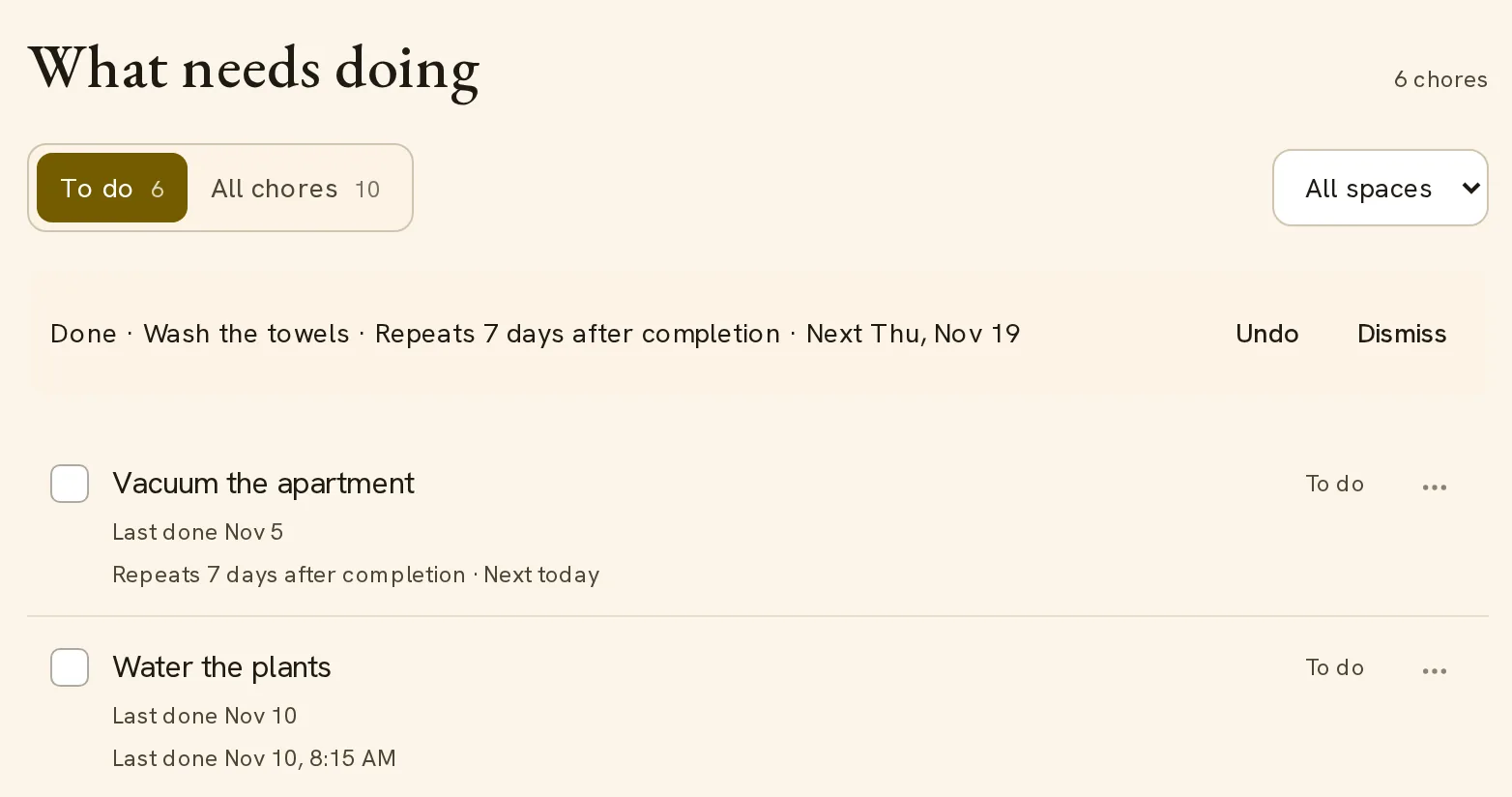
The tick shows before the save finishes. If the save fails, the row shows an error message.
You can also reverse a completion later on the same day. Open Done today and clear the checkbox of the chore.
An Anytime chore stays in To do after you complete it. Its notice shows Logged. A chore with a count shows a progress control in place of the checkbox.
For a repeating chore, the chore details have a Date field. Use it to record a completion on an earlier day. The earliest date is the day you created the chore.
The last-done date
Each row shows Last done with a date, or Not done yet. The date is the date of the latest completion.
The date does not need a schedule, so you can see how long ago you did any chore. An Anytime chore is a chore that you record when you do it, for example window cleaning. It has no due date and no count.
The chore details list each completion with its date and time under Activity history. For a chore with no repeat, the name is Completion history.
If you last did a chore before you added it, tell Ginger the day. The instructions for Ginger say to record that one completion and never to invent a date.
How Ginger adds chores
Add chore and Ask Ginger both open a chat with Ginger. You write the chores in your own words.
Tell Ginger the chore, the gap or the day, and when you last did it. For example: “Clean the fridge 30 days after I last did it, about 3 weeks ago.”
You can also ask for a list and its chores in one message. For example: “Make a Car list. Check the tire pressure every 30 days and wash the car every 14 days.”
Ginger has written instructions for chores. They say:
- Keep the list names that you give. If you give no names, create one list for each room.
- Infer the room only when it is clear: sheets go to Bedroom, dishes to Kitchen, the shower to Bathroom.
- Leave whole-home work, such as vacuuming the house, without a list.
- Save “N days after I finish” as a repeat after completion.
- Read a frequency without a weekday, such as “weekly”, as 7 days after completion.
- Keep a fixed weekday as a fixed day.
- Record a last-done date only when you state one.
- Add only the chores that you ask for.
A chore has a list, a repeat rule and a setting for missed turns. One message to Ginger can set all three. The saved chores then appear in Chores.
Chores on Home
Home has a Chores block that shows the same chores. The block lists the chores that are most ready first. A late chore shows the number of days it is late and the label Late.
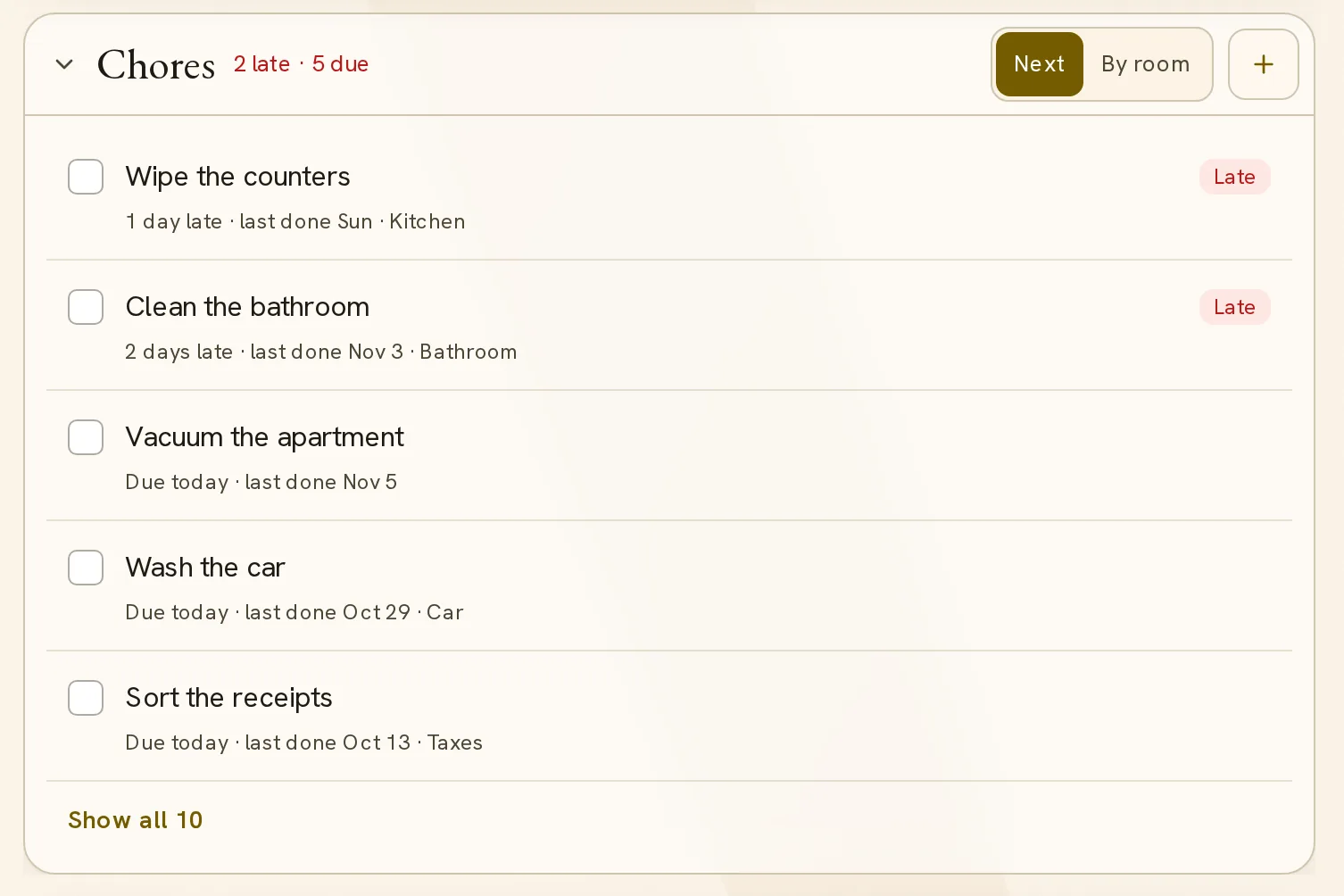
A switch selects Next or By room. Next shows five chores, and Show all shows the others. By room groups the chores by list.
While you have fewer than three chores, the block suggests common chores. Select one to add it.
To use the Chores feature, set up your chores.