
How Habits Work in Play This Life
The parts of the Habits feature in Play This Life: repeat rules, check-ins, counts, streaks, missed days, and how Ginger, your AI assistant, adds habits.
Ready plan: Daily Plan for a Remote Worker Who Wants Better Sleep
The Habits feature in Play This Life tracks the actions that you repeat. A habit is one action, and it can be about any part of your life: health, money, work, food or time outside. Each habit has a repeat rule, a check-in and a history. We built the feature to show what is due today and what you did on the days before. Ginger, your AI assistant, adds habits and their rules from your messages.
What the Habits view shows
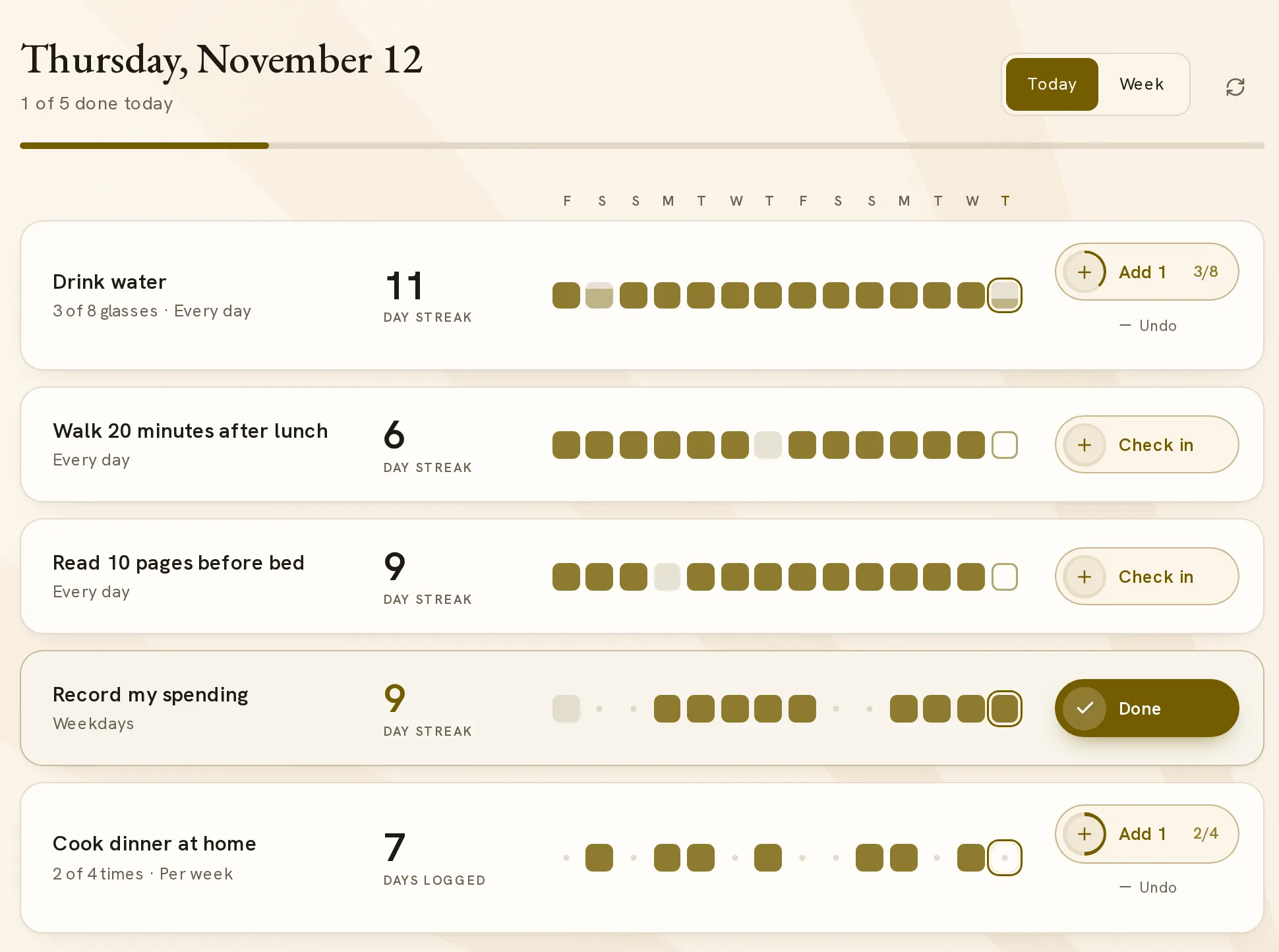
The heading shows the date and the number of habits done today, for example 2 of 3 done today. A switch selects Today or Week.
| View | Contents |
|---|---|
| Today | The habits that are due today. Each row has the habit name, the repeat rule, the streak, marks for the last 14 days and the check-in button. |
| Week | All active habits. A table shows the last 7 days of each habit. The column for today has the check-in button. |
The marks in Week are Done, Partly done, Missed and Not scheduled.
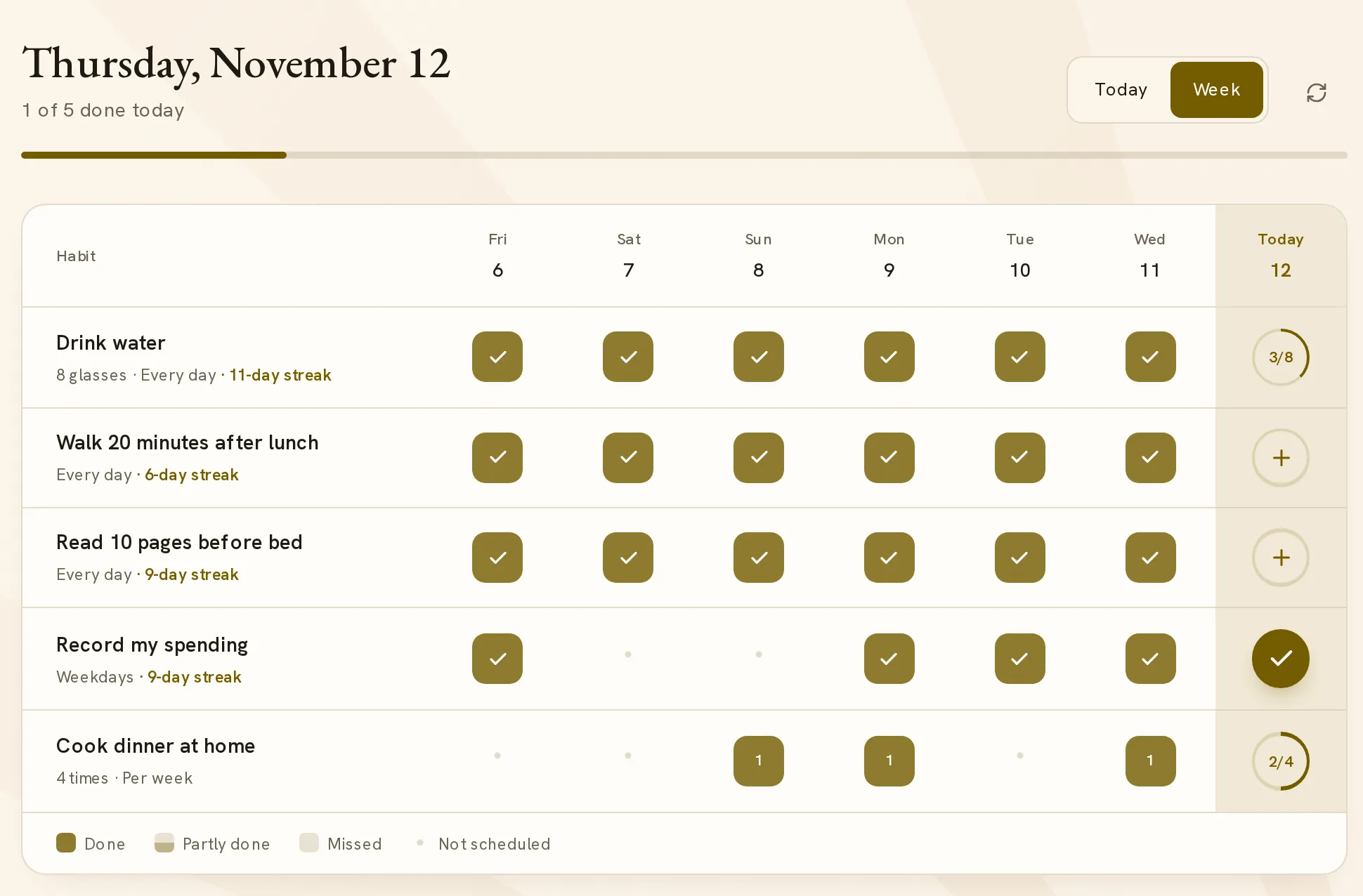
A habit that is not scheduled today is only in Week. As a result, Today lists only the work of the day.
Select a habit name to open Task details. The details show the repeat rule, the progress and the history of the habit.
How a habit repeats
Each habit has one repeat rule. The row shows the rule in short form.
| Rule | What you can ask for | Text on the row |
|---|---|---|
| Fixed days | Every day, weekdays, set weekdays such as Monday, Wednesday and Friday, every 2 weeks, or set days of the month. | “Every day”, “Weekdays”, “Every week”, “Every 2 weeks”, “Every month” |
| Count in a period | A number of times in a day, a week or a month, for example 3 times a week. | “Per day”, “Per week”, “Per month” |
| After the last check-in | A set number of days after you last did the habit. | “Repeats” |
| Any time | No schedule. You record the habit when you do it. | “Any time” |
A habit with fixed days can have a time of day, for example 7:00 AM. A habit without a time applies to the full day. A rule can also have a start date and an end date.
A count in a period has no set days. You select the days, and the habit is in Today while the count is open.
Use fixed days when the day is part of the habit. Use a count when only the total is important, for example exercise 3 times in a week.
Check in and undo
- Select Check in on the habit row.
- Make sure that the button shows Done. The mark for today is now full.
- To reverse the check-in, select Done again.
The result shows before the save finishes. If the save fails, a message appears with Retry check-in.
To record a check-in for an earlier day, select the habit name and open Progress and history. Set the Date and select Mark date. For a habit with a count, the button is Log on date. The earliest date is the day you created the habit.
Each check-in is a saved record with its date and time. Activity history in the details lists the records, and each record has its own undo.
Counts and partial progress
A habit can have a target larger than 1, for example 8 glasses of water in a day or 3 runs in a week. The row then shows the progress, for example “2 of 8 glasses”.
The button shows Add 1 and the count, for example 2/8. Each selection adds 1. Undo below the button removes the last check-in.
When the count reaches the target, the button shows Done. With a daily target, a day below the target is Partly done, and Week shows its count. With a week or month count, Week shows the number that you recorded on each day.
To record more than 1 at a time, tell Ginger the amount, for example “I drank 3 glasses of water”.
A partial day keeps its number, so the history shows the distance to the target.
Streaks and history
A habit with fixed days or a daily count has a day streak. The streak is the number of scheduled days in a row with a completed check-in, counted back from today.
- A day that is Not scheduled does not end the streak.
- Today does not end the streak while it is open. Today adds 1 when you complete the check-in.
- A Missed or Partly done day ends the streak.
The streak reads the last 35 days. If each scheduled day in that period is done and the habit is older, the number has a plus sign.
Other habits show days logged. This is the number of days with a check-in in the last 14 days.
The streak counts scheduled days because a planned day off is not a missed day.
What a missed day does
A scheduled day without a completed check-in becomes Missed when the day ends. The mark stays in the history, and the streak starts again from the next completed day.
A habit that you add with Add habit skips missed days. The missed day closes, and the check-in button applies to today only. Missed days do not collect.
Each rule has a setting for missed days: skip, carry one, or keep a backlog. The Chores guide describes the three settings. Ginger selects the setting when it saves the habit, and it keeps a backlog only when you ask for one.
To leave out one day, ask Ginger to skip it. A skipped day shows as Not scheduled and does not end the streak.
Reminders
A habit with a time of day can have a reminder. The reminder is a notification from the installed app before the start time. The default is 15 minutes before.
In the installed app, Home shows Turn on reminders until notifications are on.
Each habit has its own reminder setting: your default, off, or a set number of minutes before the start. Tell Ginger the setting, for example “Remind me 5 minutes before my walk” or “No reminder for reading”.
A habit with fixed days and no time has no separate reminder. It is in the brief that you receive each morning.
How Ginger sets up and changes habits
Ask Ginger in Habits opens a chat with Ginger. Before you have a habit, the chat fills the view and shows What habit would you like to build?
Tell Ginger the action and how often. These are examples:
- “Add a habit: read 10 pages every day at 9:30 PM. Remind me 10 minutes before.”
- “I want to run 3 times a week.”
- “Track that I record my spending every weekday.”
Ginger can also change a saved habit. For example: “Move my walk to weekdays only”, “I meditated yesterday”, “Skip my run on Friday” or “Archive my reading habit”. An archived habit keeps its history.
Ginger has written instructions for habits. They say:
- Select the type from the purpose. An action that you want to keep is a habit. Housework that returns is a chore. Steps that you do together are a routine, and exercises with sets are a workout.
- Save “N times a day, week or month” as a count in that period.
- Do not invent a clock time or a target. Without a time, the habit applies to the full day, and a word such as “morning” stays in the name.
- Change the reminder of a habit only when you ask.
- Record only the check-ins that you report.
- Keep the recorded check-ins when a rule changes.
You can also add a habit without Ginger. Add habit opens a short form with Habit name, Repeat and Daily check-ins. To change a rule yourself, open the habit details and select Edit task.
Habits on Home and in the Planner
Home has a Habits block. Its heading shows the count for today, for example 2 of 3 done today. Habits that are due and open come first, and done habits come last.
Each row has a check-in button, the habit name, a status line and 7 dots for the last 7 days. Select the button to check in. Select it again on a done habit to undo. The status line shows the count and the streak, for example “2 of 8 glasses · 12 days in a row”.
The block shows 5 habits, and Show all shows the others. The habits that are due today also count in the day total at the top of Home.
The Planner shows each habit on the days of its rule. A habit with a time is under Timed, and a habit without a time is under Any time. A week or month count is under Flexible targets. You can check in from the Planner card.
In Ask Ginger, you can report a check-in in a message, for example “I did my walk”.
To use Habits, set up your plan.