
How Routines Work in Play This Life
The parts of Routines in Play This Life: steps, runs, schedules, missed days, stats, and how Ginger, your AI assistant, builds and changes a routine.
Ready plan: Daily Plan for a Freelancer Who Wants Better Sleep
A routine in Play This Life is a set of ordered steps that you do together. The Routines feature shows the steps in order, records each run and keeps stats for each routine. We built it for the sequences that we repeat, such as a morning or the end of a work day. Ginger, your AI assistant, builds each routine from your message.
What a routine is
A routine has a name, steps and, in most cases, a schedule. A routine can be any sequence. These are examples:
- A morning: drink water, stretch, make the bed, read the plan for the day.
- An evening log-off: close the laptop, leave the desk, tidy for 10 minutes.
- A focus block: three work rounds with a break after each round.
- A weekly review: clear the Inbox, check each project, plan the week.
- A shift wind-down: eat, shower, set out the clothes for the next shift.
A step can contain more steps. The routine shows them indented below that step.
The steps follow the schedule of the routine and have no dates of their own. For this reason, Home and the Planner show one routine, not one item for each step. For one repeated action without steps, use Habits.
The Routines view
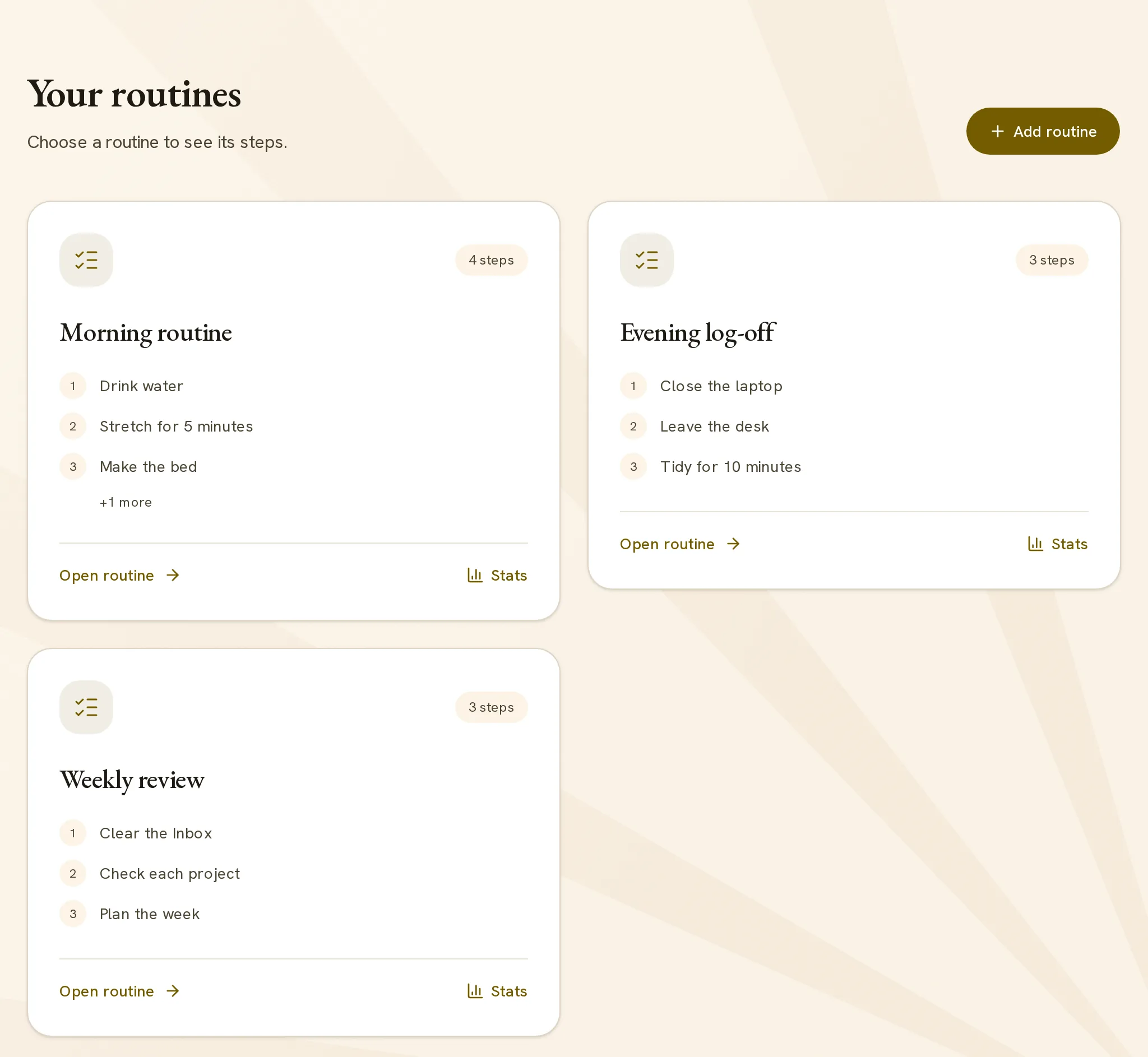
Select Routines in the sidebar. Below the heading Your routines, each routine has one card. The card shows the number of steps, the name and the first three steps. Select the card to open the routine. Stats on the card opens the stats of the routine.
A list that holds two or more routines has one card. The card shows each routine with its schedule and its number of steps. Inside the list, each routine shows In progress, Done today, Today or its number of steps.
Run a routine
- Open the routine. The line below the name shows Not started.
- Select Start routine. You can also select a step: the run starts and that step gets a tick.
- Select each step when you do it. The label Up next marks the first step without a tick.
- To remove a tick, select the step again.
- Select Finish routine.
During a run, the line below the name counts the steps, for example “2 of 5 done”. Each tick shows immediately.
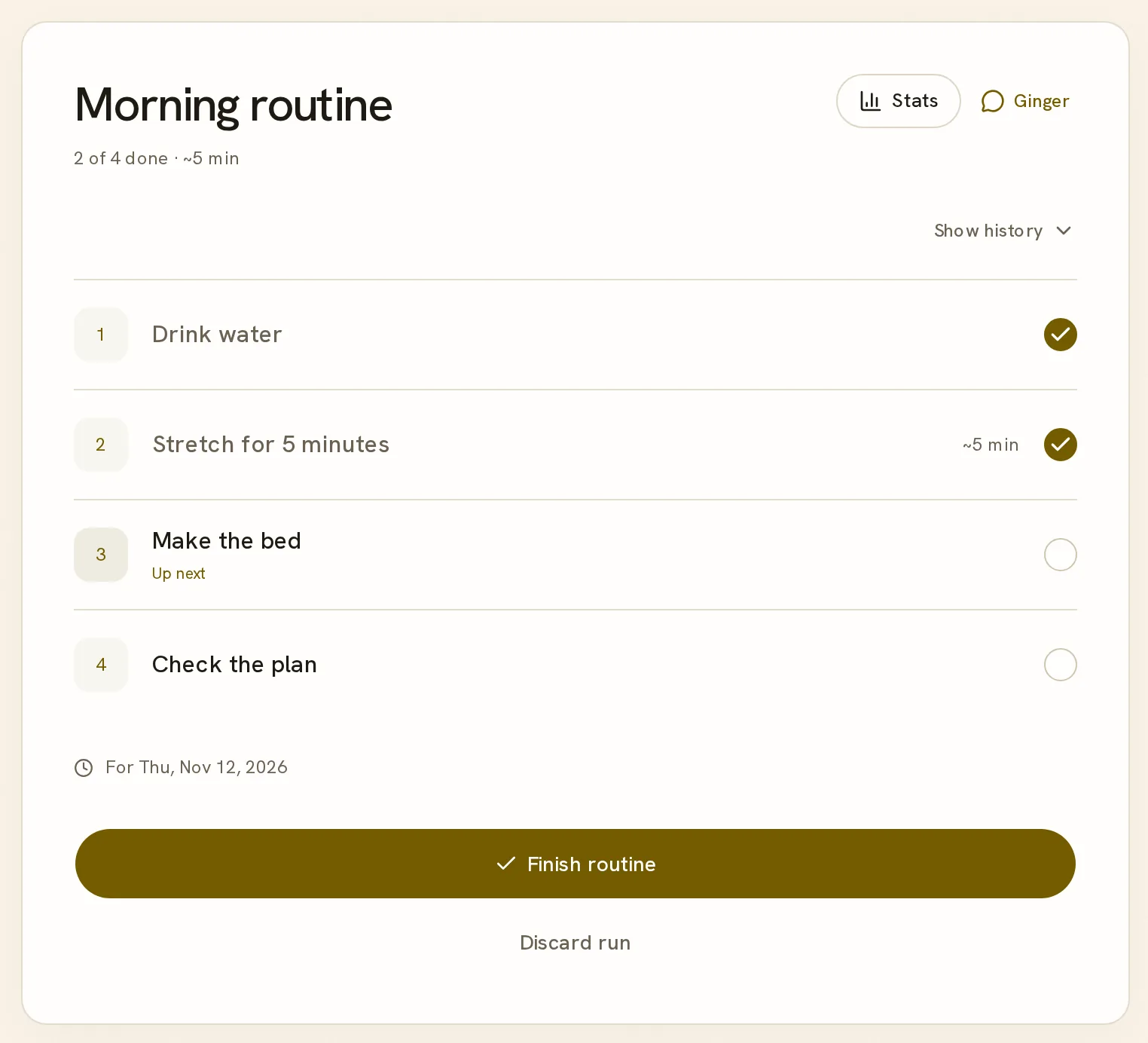
Discard run closes a run without a completion. The stats do not count a discarded run.
Skip a step and finish
To skip a step, leave it without a tick and select Finish routine. The run finishes with the steps that you did.
The summary shows Routine complete when each step has a tick. It shows Routine finished when a step has no tick. The summary also shows the number of steps done, the duration of the run and the finish time. Each step has the label Completed or Not completed.
A run with a skipped step is still a finished run. The stats record it as a run with skipped steps, not as a missed day.
Show history opens a calendar of the recorded runs. Select a run to see the steps that it completed.
Days, times and lengths
The schedule belongs to the routine. Ginger saves the schedule from your words. These are the schedules that a routine can have:
- Days of the week: each day, weekdays, or Monday, Wednesday and Friday.
- A gap in weeks: each second Sunday.
- Days of the month: the first day, or the last Friday.
- A count in a period: three times each week, on the days that you select.
A routine can have a clock time. Without a time, the routine is for the full day.
For different steps on different days, use one routine for each set of days. For example, use one routine for weekdays and one for weekends. Each routine has its own steps, its own start time and its own stats. Put the routines in one list to show them on one card.
A step can have a planned length. The step shows the length, for example “~5 min”, and the routine shows the sum for its steps. The length is a plan. Each run records its real start time and finish time.
A routine with a clock time gets a reminder in the installed app when notifications are on. The default reminder is 15 minutes before the start.
What a missed day does
A scheduled day that ends without a finished run is a missed day. The stats mark the day Missed, and the count of runs in a row returns to zero. The current day is not a missed day while it continues.
A run that you start and do not finish stays open. On a later day, the routine shows that run first, with its start date. Finish the run or select Discard run.
To leave out one day, ask Ginger to skip it. The stats do not count a skipped day as a missed day.
A missed day, a skipped day and a run with skipped steps are different facts. The stats keep them apart.
Routine stats
The stats show how you keep each routine. There are three ways to open them:
- Select Stats on a routine card.
- Select Stats next to the name of an open routine.
- Select Stats in the sidebar, which lists each workout and each routine.
The stats of a list show each routine in the list. The Workouts guide explains the stats of a workout.
Select a period: Week, Month or Year. Week is the last seven days. Month is the last four to five weeks and starts on a Monday. Year is the last twelve months.
| Part | Contents |
|---|---|
| Runs kept | The finished runs and the planned runs in the period, for example “18 of 20”. |
| In a row | The current count of runs kept in a row, and the best count. An open run for today does not stop the count. |
| Calendar | One cell for each day of the period. The colors are Every step, Some steps skipped and Missed. |
| Kept | The percentage of planned runs that you finished. |
| By day | The percentage for each weekday. A weekday that is 15 points below the routine shows as a slip, for example “Tuesdays slip: 40%”. A routine without two or more weekdays shows Takes, its usual duration. |
| Starts | The usual start time. When recent runs start 15 minutes or more from that time, the text is “Later lately” or “Earlier lately”. |
| Steps that slip | Each step that you skip in at least 1 run of 20, with its last 14 runs and its skip count. |
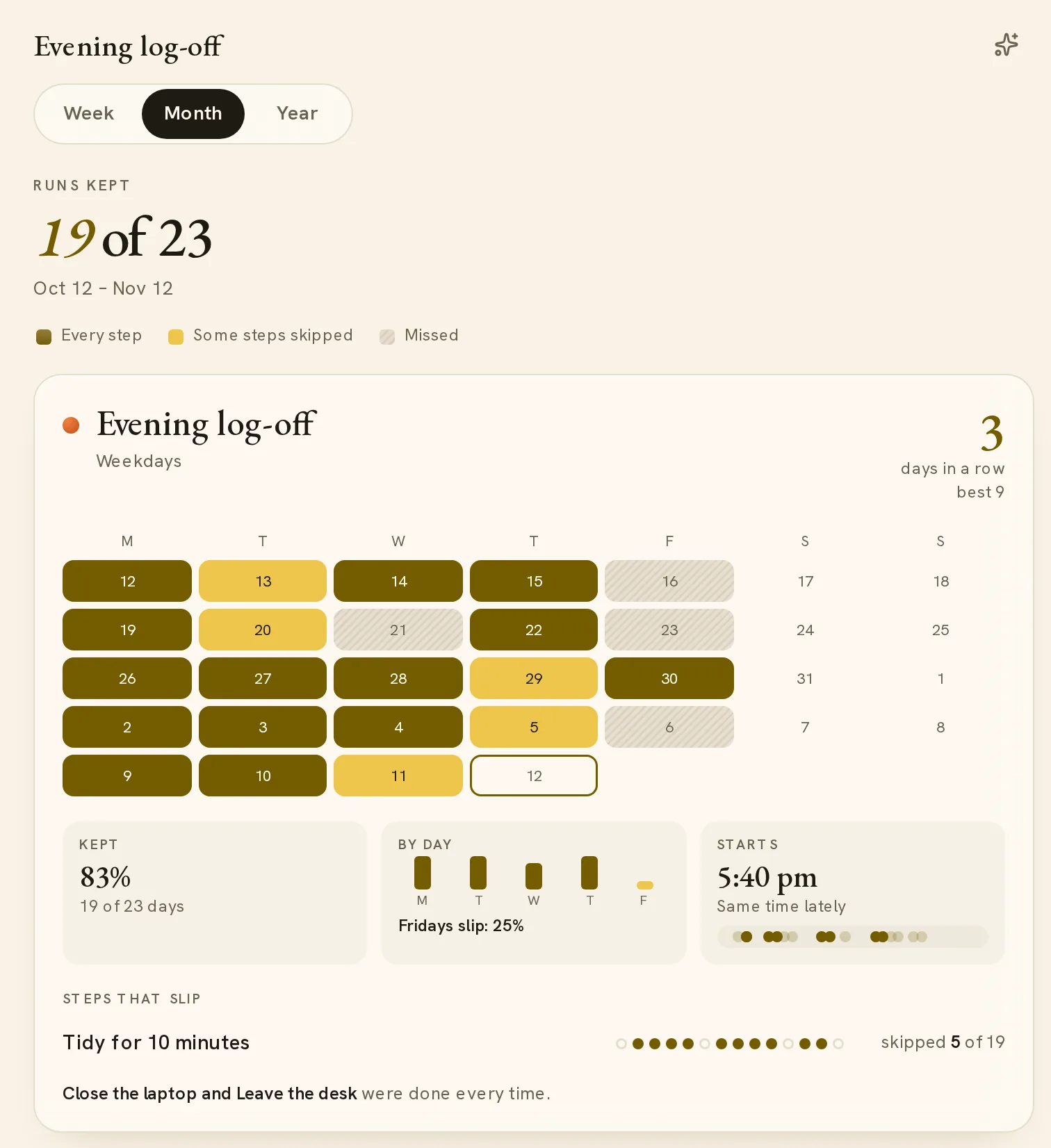
The stats separate the day, the start time and the step. This shows which part of a routine to change. The Ask Ginger button in the stats opens a chat about that routine.
How Ginger builds and changes a routine
Add routine opens a chat with Ginger. Before you have a routine, the Routines view shows this chat directly. Tell Ginger the routine, its steps and when you do it. For example: “Morning routine on weekdays at 7: drink water, stretch for 5 minutes, make the bed, check the plan.”
The Ginger button next to the name of a routine opens a chat about that routine. These are messages that you can send:
- “Add a step to pack the gym bag after I make the bed.”
- “Move the evening routine to 10 pm.”
- “Skip the morning routine tomorrow.”
- “Make a focus block on weekdays at 9: three 25-minute rounds with a 5-minute break after each.”
- “Do the weekly review each second Sunday.”
- “I did the morning routine at 7 but not the stretch.”
Ginger has written instructions for routines. They say:
- Put the schedule on the routine. The steps follow it.
- Keep the steps that you give.
- Add no clock time and no target that you did not state.
- Save weekdays without a time as full days.
- Keep words such as “morning” in the name.
- Give each routine in a rotation its own weekdays.
- Record only the work that you report. A finished run does not tick the other steps.
The Ask Ginger guide explains the chat.
Routines on Home and in the Planner
Home has a Routines block. The block lists the routines for today: first the routine that is on now, then the routines for later, then the finished routines. A routine is on from 30 minutes before its time. Show all shows the other routines.
Each routine in the block shows its time, its steps and Start. Select Start or a step, and the routine runs inside the block with the same controls. Close returns to the list. A run in progress shows Resume.
The Planner shows a routine as one card on each scheduled day, with its time. Select the name on the card to see the steps and the link Open routine.
To use Routines, start here.